Removing a WordPress site from cPanel sounds simple, but it is one of those tasks where a small mistake can delete the wrong site, the wrong database, or files you still need.
The good news is that you can do it safely if you slow down and follow the right order: back up the site, confirm the correct domain, remove the WordPress installation, clean up leftover files, remove the database, and test the domain afterward.
In this guide, I will show you how to remove a WordPress site from cPanel using the beginner-friendly method first, then the manual method if your host does not provide an installer tool.
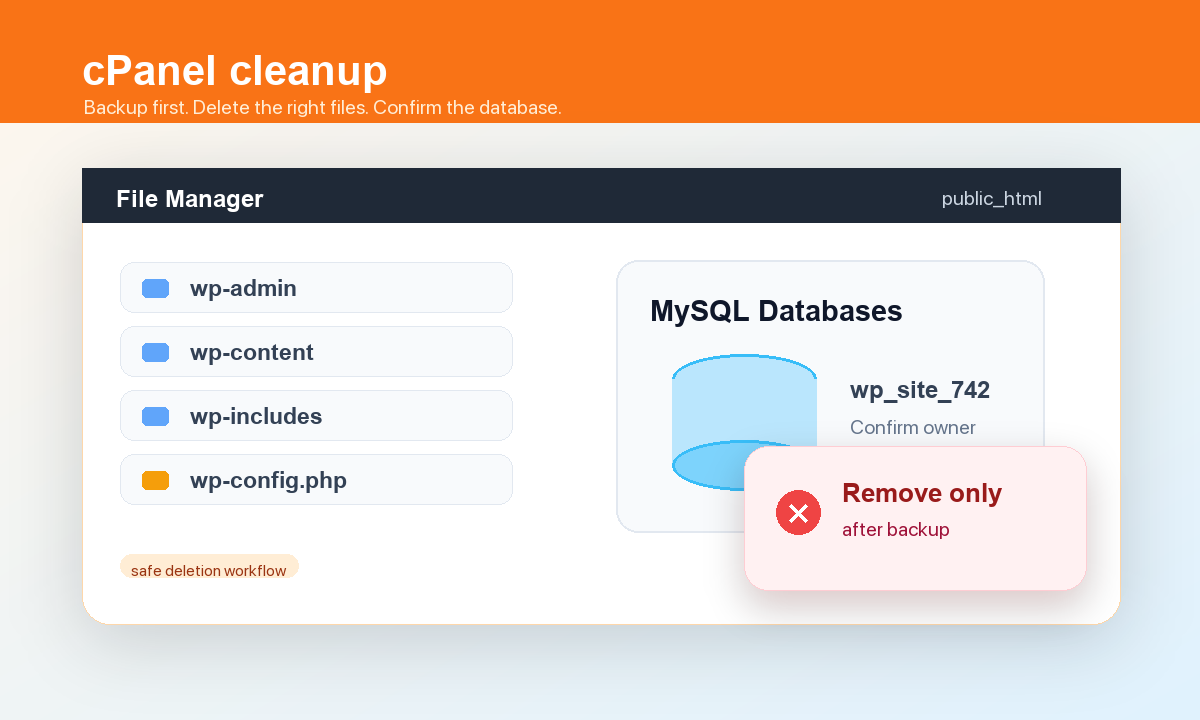
Table of Contents
Before You Remove the Site
First, make sure you actually want to delete the WordPress installation. If you only want to start fresh, it may be better to reset WordPress or create a staging copy instead.
Step 1: Back Up the WordPress Site
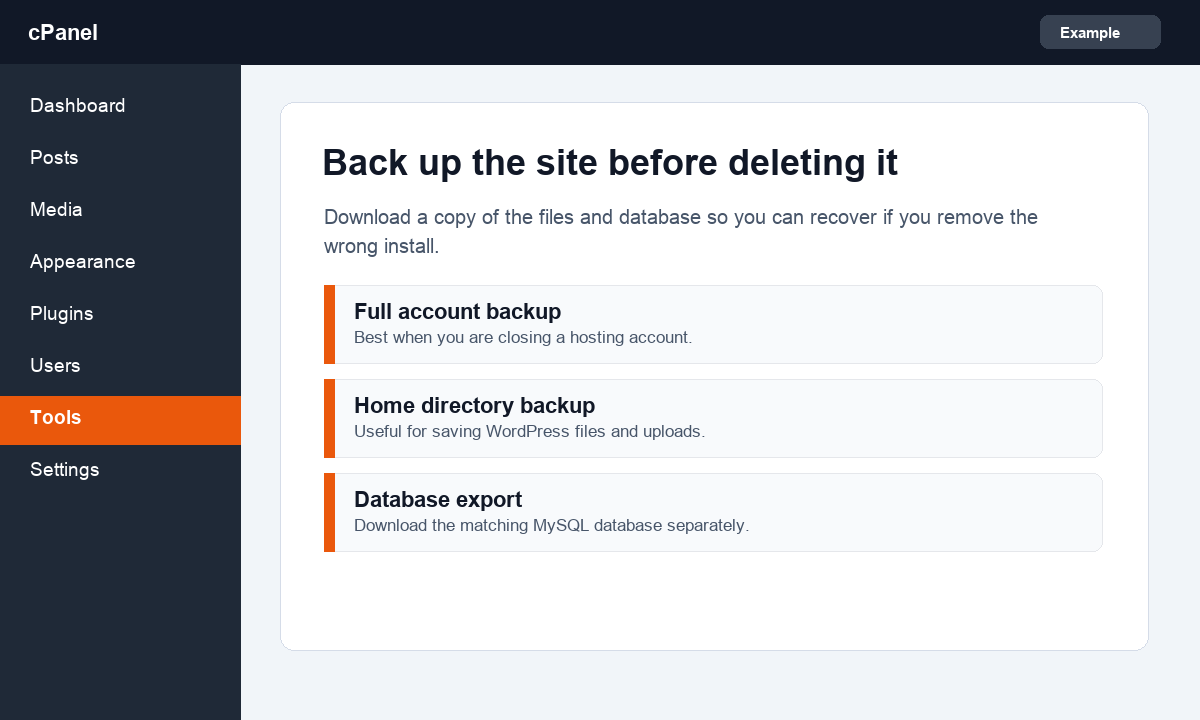
Do not skip the backup step. Even if you are sure you do not need the site, a backup gives you a way back if you delete the wrong folder or database.
- Log in to cPanel.
- Open Backup or Backup Wizard. The exact name depends on your host.
- Download a full account backup if your host allows it.
- Download the home directory backup and the MySQL database backup if a full backup is not available.
- Save the backup somewhere outside your hosting account.
If you are new to backups, read what a WordPress backup includes before deleting anything.
Step 2: Remove WordPress from WP Toolkit or Softaculous
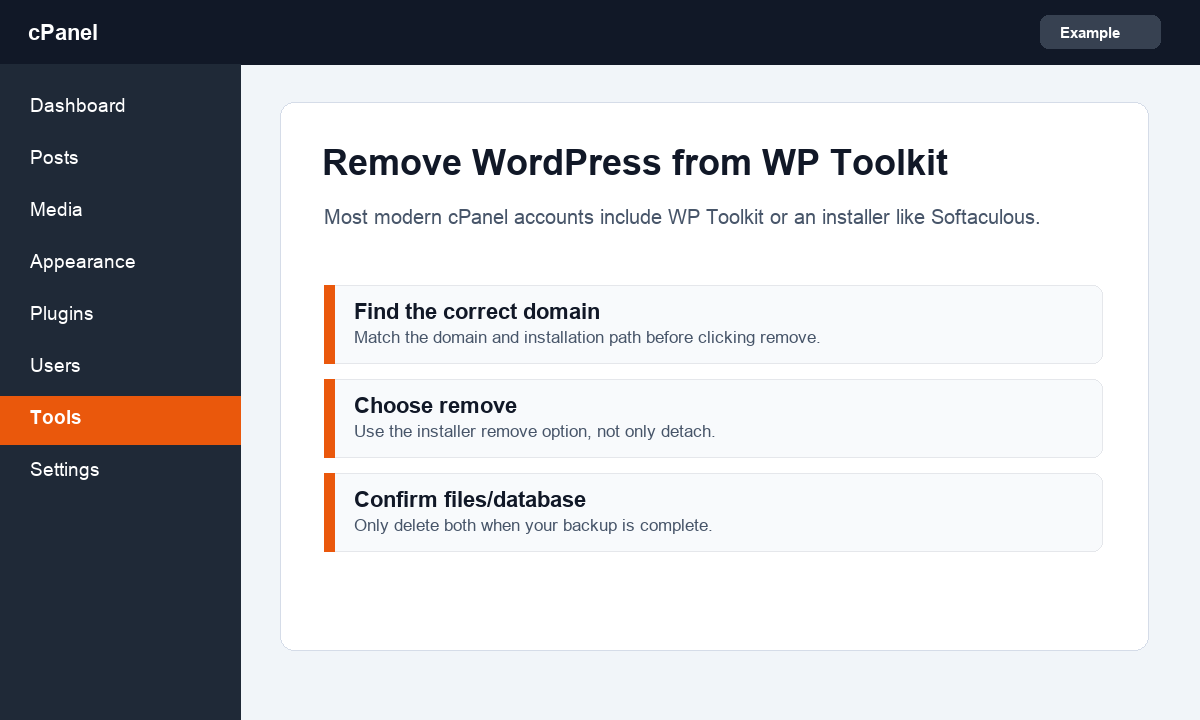
Most cPanel hosting accounts include WP Toolkit, Softaculous, Installatron, or a similar WordPress installer. If your site was installed through one of these tools, remove it there first.
- In cPanel, search for WP Toolkit, WordPress Manager, Softaculous, or WordPress.
- Open the tool and find the site you want to delete.
- Check the domain name and installation path carefully.
- Choose Remove, Uninstall, or the trash icon.
- If the tool asks whether to delete files and database tables, choose those options only after your backup is saved.
cPanel documents WP Toolkit for cPanel, and many hosts expose similar remove or uninstall options for managed WordPress installs. Your host may change the labels, but the idea is the same: remove the specific installation record and its matching files/database only when you are sure it is the right site.
Step 3: Delete WordPress Files Manually If Needed
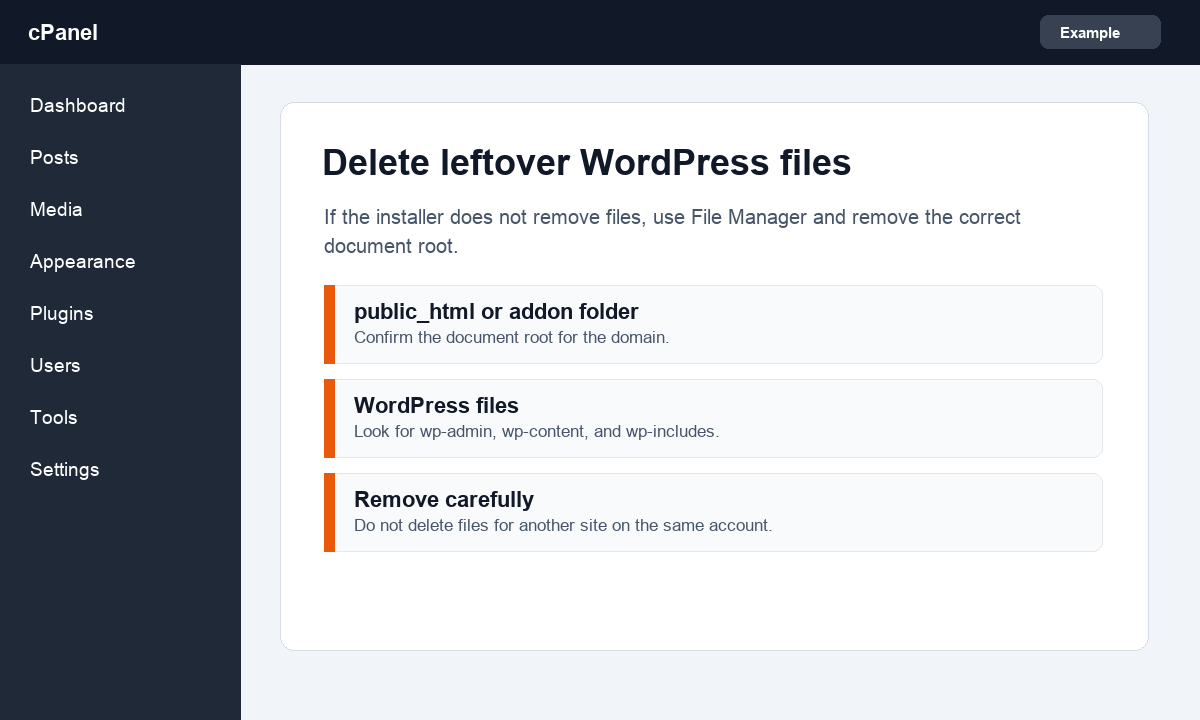
Sometimes the installer removes the record but leaves files behind. Other times, the site was installed manually and does not appear in WP Toolkit or Softaculous. In that case, use File Manager.
- Open File Manager in cPanel.
- Find the document root for the domain. For the main domain this may be
public_html. For addon domains, it may be a separate folder. - Look for WordPress files like
wp-admin,wp-content,wp-includes, andwp-config.php. - Confirm that this folder belongs to the site you want to remove.
- Select the WordPress files and delete them.
Be extra careful on hosting accounts with multiple sites. Deleting the wrong <code>public_html</code> folder can take another site offline.
Step 4: Remove the WordPress Database
WordPress stores posts, pages, comments, settings, users, orders, and many plugin settings in the database. After the files are removed, delete the matching database only if you are sure no other site uses it.
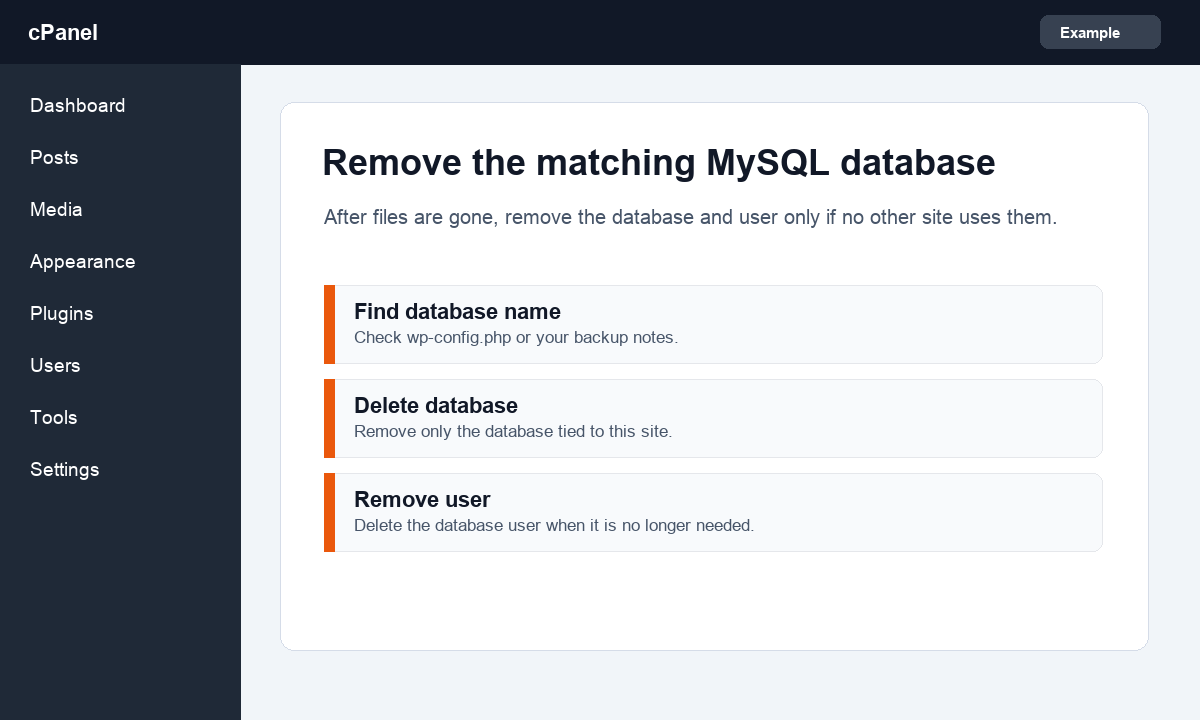
- If the files still exist, open
wp-config.phpand write down theDB_NAME,DB_USER, andDB_PASSWORDvalues. - Go back to cPanel and open MySQL Databases.
- Find the database name that matches the removed WordPress site.
- Delete that database.
- Remove the database user if it is not used by another site.
If you already deleted the files and forgot the database name, check your backup notes or your installer history before deleting random databases.
Step 5: Clean Up the Domain Settings
Once files and database are removed, check the rest of the cPanel account for leftover settings tied to the old site.
- Remove addon domains or subdomains you no longer need.
- Remove old redirects that pointed to the WordPress site.
- Remove cron jobs created by old plugins if they still exist.
- Delete unused email forwarders only if they belonged to that site.
- Remove SSL certificates only if the domain is no longer used.
If you plan to use the domain again, keep SSL in mind. You can read our tutorial on getting a free SSL certificate for WordPress when the new site is ready.
Step 6: Check the Site After Removal
Finally, open the domain in a private browser window and check what visitors see. You should not see the old WordPress site, old login page, or a broken half-deleted homepage.
- Open the homepage.
- Visit
/wp-admin/and confirm the old login page is gone. - Check whether the domain shows a blank directory listing. If it does, disable directory browsing or add a simple placeholder page.
- Check Google Search Console later if the site was indexed and you want URLs removed or redirected.
Summary
The safest way to remove a WordPress site from cPanel is to back it up first, then remove it through WP Toolkit, Softaculous, or your host installer. If the site was installed manually, delete the correct files in File Manager and remove the matching MySQL database afterward.
Take your time with the domain and database checks. That is where most accidental deletions happen.
FAQs
Will removing WordPress from cPanel delete my domain?
No. Deleting WordPress removes the website files and database. Your domain registration is separate unless you also remove the domain from your hosting account or registrar.
Should I delete the database too?
Yes, but only if you are sure the database belongs to the WordPress site you removed. If another site uses the same database, deleting it will break that site.
What if my WordPress site does not appear in WP Toolkit or Softaculous?
Use File Manager and MySQL Databases manually. First identify the correct document root and database name, then remove them after creating a backup.
Can I recover the site after deleting it?
Only if you have a backup or your host keeps server backups. That is why the first step is to download a copy before deleting anything.
Why does my old site still show after I deleted WordPress?
It may be cache, DNS, a CDN, or leftover files in the document root. Clear cache and confirm that the files were removed from the correct folder.
Subscribe to our Weekly Newsletter
Get weekly updates of WordPress tips, tricks, and tutorials in your email.
Thanks. You have successfully subscribed.


