A WooCommerce wholesale store is different from a normal online store. Retail customers may see regular prices, while approved B2B buyers see wholesale prices, minimum order rules, different payment methods, and sometimes a faster bulk ordering page.
You can build this with WooCommerce, but WooCommerce by itself does not include every wholesale feature most B2B stores need. The beginner-friendly approach is to set up WooCommerce first, then add a wholesale pricing plugin so you can control who sees B2B prices.
In this tutorial, I will walk you through the practical setup: planning your wholesale rules, adding a wholesale customer role, setting product prices, creating an approval process, and testing the store before launch.
Table of Contents
What You Need for a WooCommerce Wholesale Store
- A working WordPress site with WooCommerce installed.
- Products added to WooCommerce with SKUs, stock, images, and normal retail prices.
- A wholesale plugin such as Wholesale Prices for WooCommerce or another role-based pricing plugin.
- A clear rule for who is allowed to become a wholesale customer.
- A test user account so you can check the buying experience before real customers use it.
If you are still building the store itself, start with our guide on building an online store with WooCommerce.
Step 1: Plan Your Wholesale Rules
Before installing plugins, write down how your wholesale store should work. This makes the setup much easier and prevents confusing pricing later.
- Who can buy wholesale: approved businesses, logged-in customers, members, or manual accounts only?
- How prices work: fixed wholesale price, percentage discount, tiered pricing, or product-by-product pricing?
- Minimum order rules: minimum quantity, minimum cart value, or case-pack quantities?
- Taxes: should wholesale prices include tax or exclude tax?
- Shipping: will wholesale customers get different shipping methods or rates?
- Payments: will they pay by card, invoice, bank transfer, or purchase order?
For a first B2B store, keep the rules simple. Product-by-product wholesale pricing plus manual approval is usually easier to manage than a complicated discount system.
Step 2: Install WooCommerce and a Wholesale Plugin
WooCommerce gives you the product catalog, cart, checkout, orders, taxes, and shipping. The wholesale plugin adds B2B pricing and wholesale customer rules.
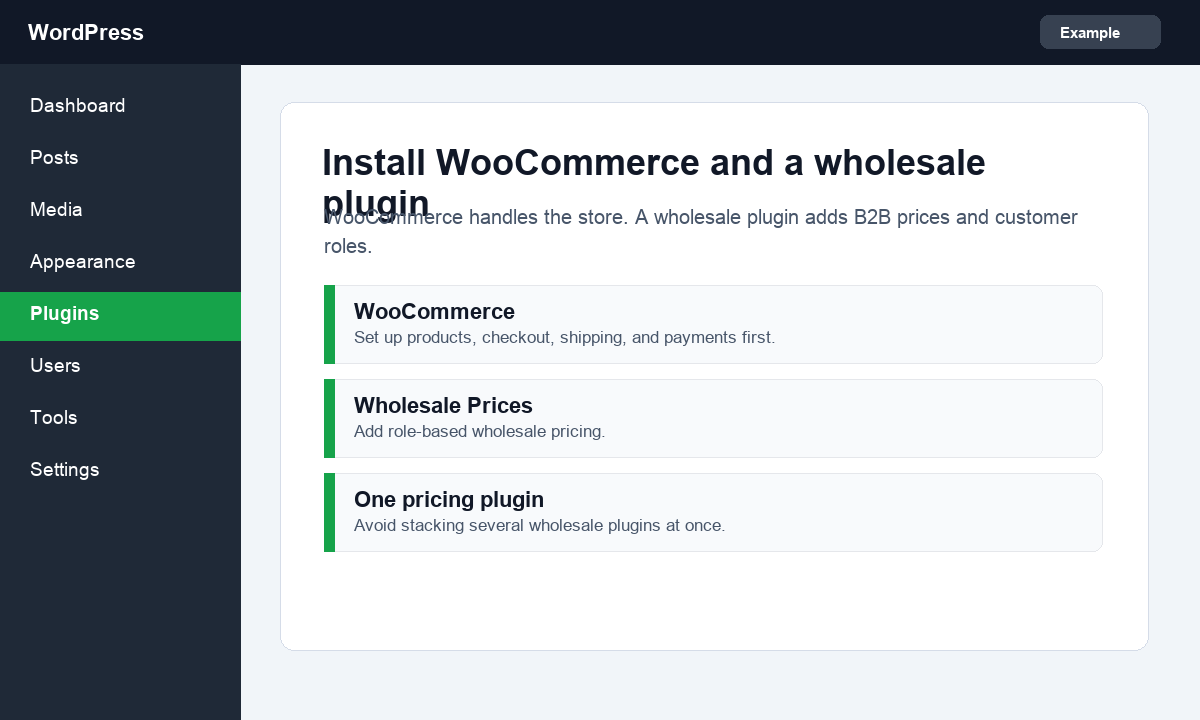
- Go to Plugins > Add New.
- Install and activate WooCommerce if it is not already installed.
- Run the WooCommerce setup wizard and add your basic store details.
- Search for a wholesale plugin such as Wholesale Prices for WooCommerce.
- Install and activate the wholesale plugin.
Do not install several wholesale pricing plugins at the same time. Pricing plugins often hook into the same WooCommerce price filters, so using more than one can create strange cart totals.
Step 3: Create or Assign the Wholesale Customer Role
Most wholesale plugins add a customer role like Wholesale Customer. This role is what tells WooCommerce which shoppers should see B2B prices.
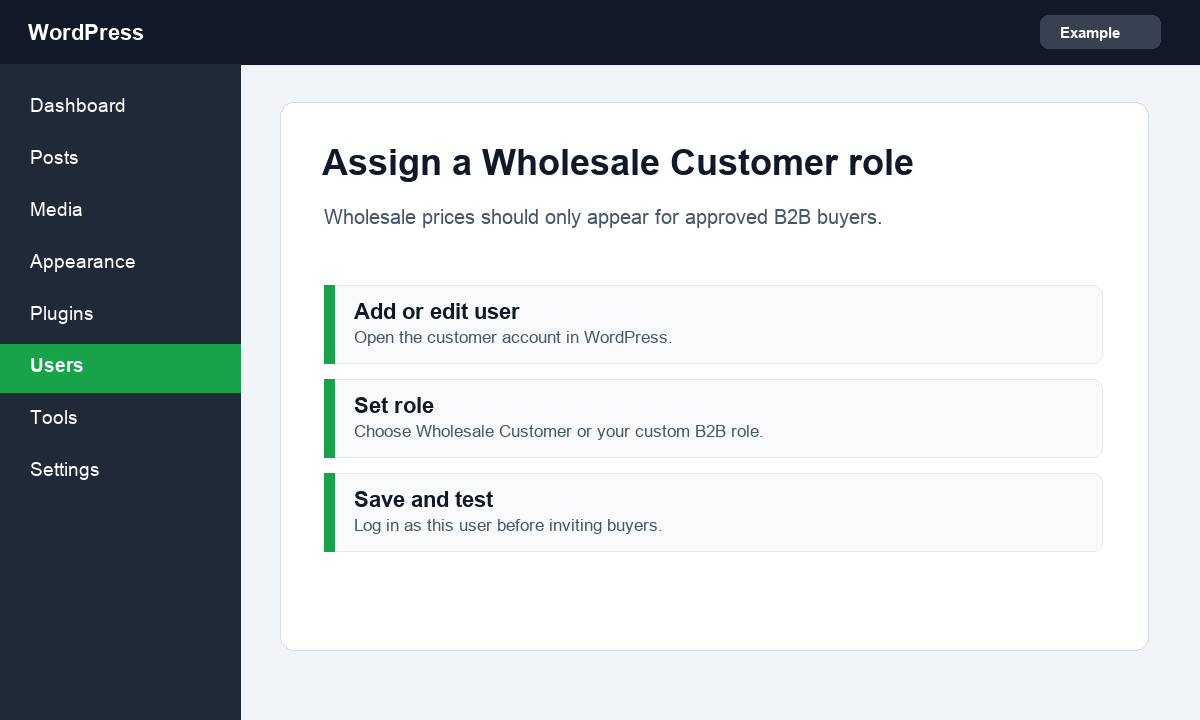
- Go to Users > Add New or edit an existing customer account.
- Find the Role dropdown.
- Choose Wholesale Customer or the role created by your wholesale plugin.
- Save the user.
- Keep this account for testing before approving real buyers.
If you want customers to apply for wholesale access, add a registration form and approve accounts manually. Manual approval is slower, but it protects your wholesale prices from being shown to every visitor.
Step 4: Add Wholesale Prices to Products
Now open your products and add wholesale prices. Start with your most important products first instead of editing the entire catalog in one sitting.
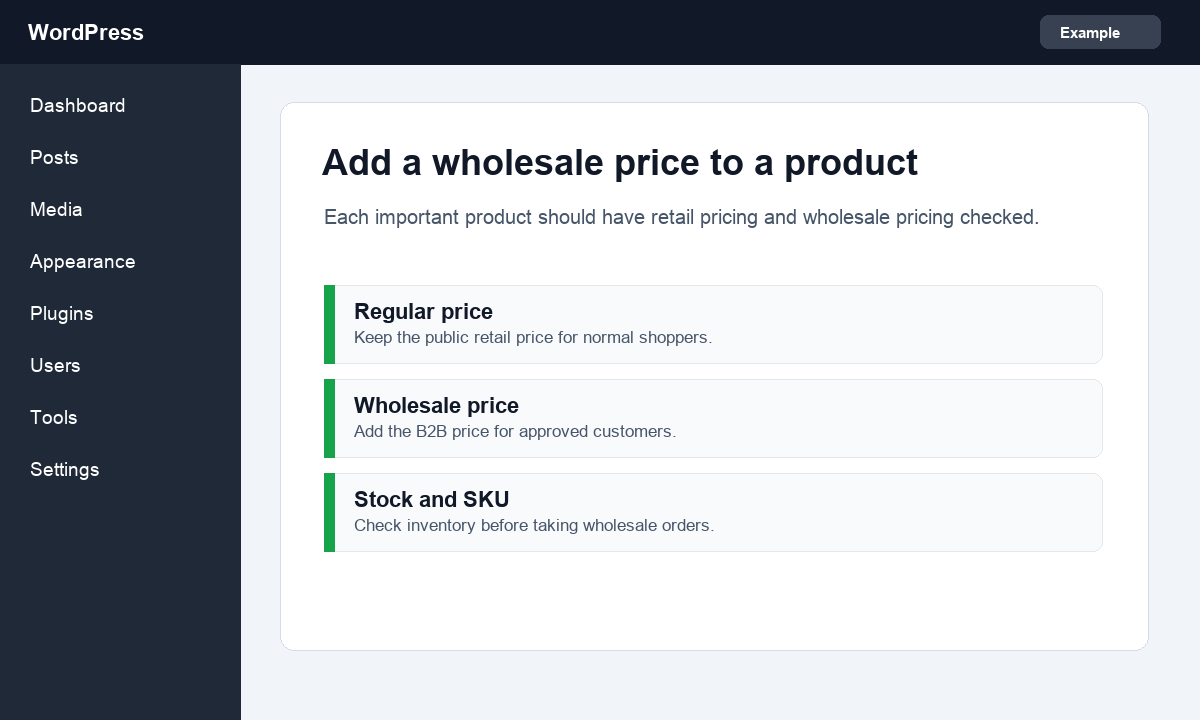
- Go to Products > All Products.
- Edit a product you want to sell wholesale.
- Scroll to the Product data box.
- Keep the regular price for retail customers.
- Add the wholesale price in the wholesale pricing field.
- Update the product.
If your store uses variable products, check each variation. Wholesale pricing may need to be added per variation depending on the plugin you choose.
For stores with many orders, you may also want to read how to export WooCommerce orders so you can send order data to accounting or fulfillment tools.
Step 5: Set Minimum Order Rules
Wholesale buyers usually order more than retail customers. If your margins depend on larger orders, set minimum rules before launch.
- Minimum quantity per product.
- Minimum cart subtotal for wholesale checkout.
- Case-pack or box quantity rules.
- Bulk order form for repeat buyers.
Some of these features may require a premium wholesale plugin or an extra WooCommerce extension. If you are just starting, begin with simple minimum quantities and upgrade only when the store needs more control.
Step 6: Adjust Shipping, Tax, and Payment Methods
Wholesale stores often need different checkout rules. For example, you may want retail customers to pay by card, but allow approved wholesale buyers to pay by invoice or bank transfer.
- Create shipping zones for your wholesale regions.
- Decide whether wholesale buyers get free shipping, flat-rate shipping, or freight quotes.
- Check whether wholesale prices should be taxable in your location.
- Enable only the payment methods you are willing to offer to wholesale buyers.
Shipping is easy to underestimate. Our guide on managing WooCommerce shipping rates can help you check the basics.
Step 7: Test the Wholesale Store
Testing is where you catch most problems. Do not launch the B2B store just because the settings look correct in the dashboard.
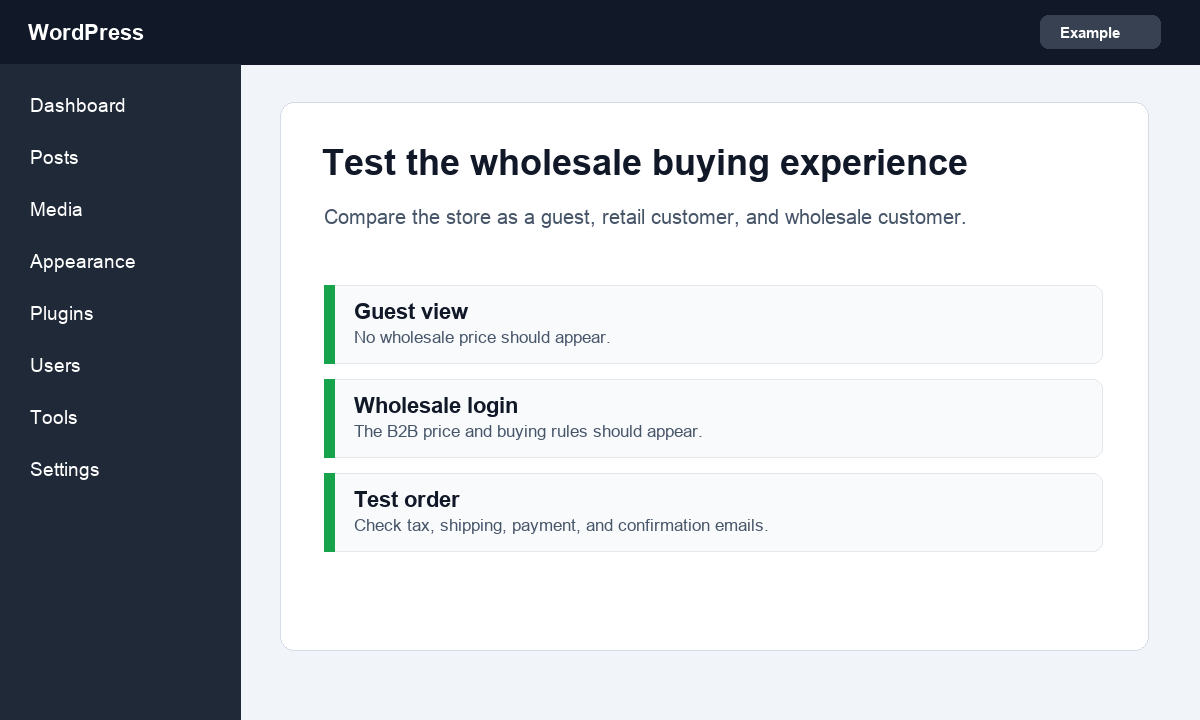
- Open the product page while logged out. You should see the normal retail price.
- Log in as a normal customer. The wholesale price should still be hidden.
- Log in as your wholesale test customer. The wholesale price should appear.
- Add the product to cart and check the cart total.
- Place a test order and check the order email, tax, shipping, and payment method.
Also test on mobile. Many wholesale customers reorder from phones, so the product page, cart, and checkout should be easy to use on a small screen.
Summary
The simplest WooCommerce wholesale setup uses normal WooCommerce products, a wholesale customer role, product-level wholesale prices, and manual approval for B2B buyers. Once the basics work, you can add minimum order rules, bulk order forms, and special shipping or payment rules.
Do not rush the testing step. A small pricing mistake can become expensive when wholesale buyers start placing larger orders.
FAQs
Can WooCommerce create a wholesale store by itself?
WooCommerce can run the store, products, cart, checkout, orders, taxes, and shipping. For role-based wholesale pricing, you usually need a wholesale plugin or custom development.
Should wholesale prices be visible to everyone?
Usually no. Most B2B stores show wholesale prices only to approved logged-in customers so retail visitors do not see discounted pricing.
Can I have retail and wholesale customers on the same WooCommerce store?
Yes. That is one of the biggest advantages of using roles. Guests and retail customers can see normal prices, while approved wholesale customers see B2B prices.
Do I need a separate wholesale registration page?
You do not have to add one on day one. You can manually create wholesale accounts first, then add a registration and approval workflow when demand grows.
What should I test before launching a WooCommerce wholesale store?
Test product prices, variable products, cart totals, tax, shipping, payment methods, emails, mobile layout, and the difference between guest, retail, and wholesale user accounts.
Subscribe to our Monthly Newsletter
Get monthly updates of WordPress tips, tricks, and tutorials in your email.
Thanks. You have successfully subscribed.


![How to Hide a Page in WordPress [Step By Step Visual Guide]](https://codingheros.com/wp-content/webp-express/webp-images/uploads/2024/07/how-to-hide-a-page-in-wordpress-step-by-step-visual-guide.png.webp)

