Want to hide theme details in WordPress? The first thing to know is that this is not the same as securing your website.
Hiding theme details simply makes it harder for visitors, competitors, and automatic theme detector tools to see your exact theme name from the page source. It can be useful if you have a custom design, a white-label client site, or you just do not want your theme folder name sitting in plain view.
But please do not treat this as your main security plan. A hidden theme name will not protect an outdated theme, weak password, missing firewall, or vulnerable plugin. Keep updates, backups, SSL, and security basics in place first.
In this tutorial, I will show you four beginner-friendly methods, plus a final testing step, to hide or reduce visible WordPress theme details safely.
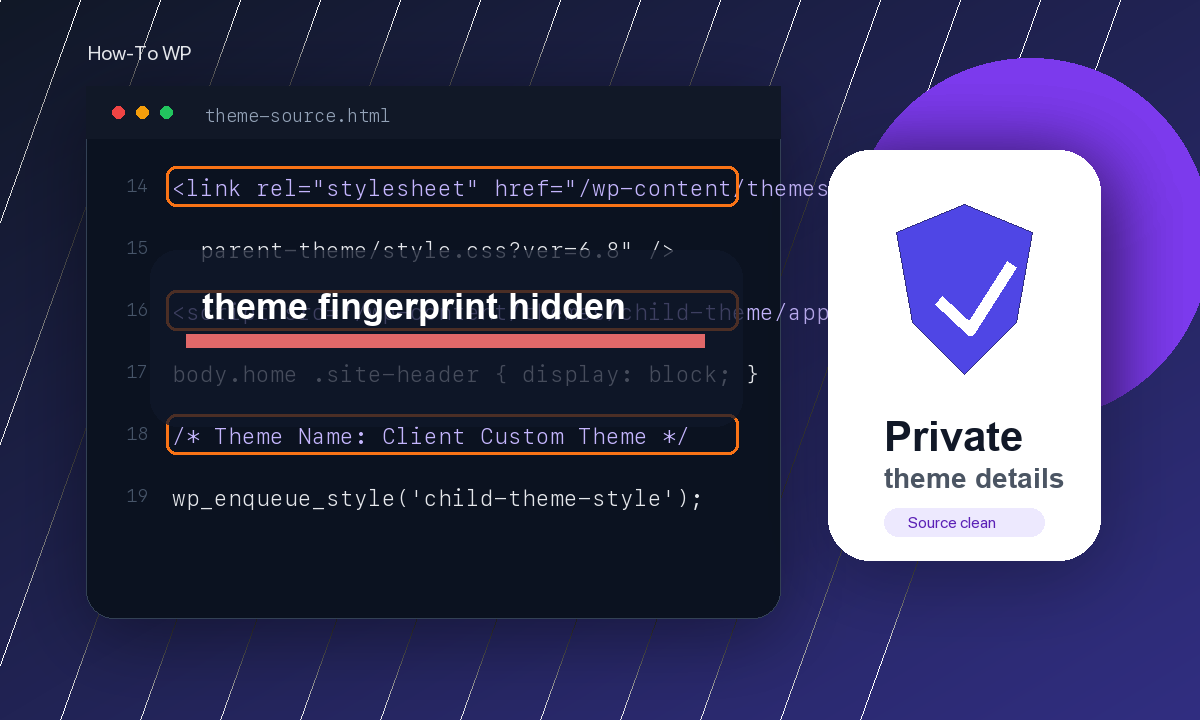
Table of Contents
Before You Start
Because this tutorial changes how theme files appear on the front end, take a few minutes to prepare. This is especially important if your site uses caching, a CDN, a child theme, or a custom theme.
- Take a fresh backup first. If you are not sure what a good backup includes, read what a WordPress backup should include.
- Test on a staging site if possible. Here is our guide on creating a WordPress staging site.
- Do not rename or edit your parent theme on a live site unless you know exactly how updates are handled.
- Clear your cache after each change. Cached HTML can keep old theme paths visible for a while.
Method 1: Check What Theme Details Are Visible
Start by checking what your site currently exposes. This gives you a simple before-and-after test.
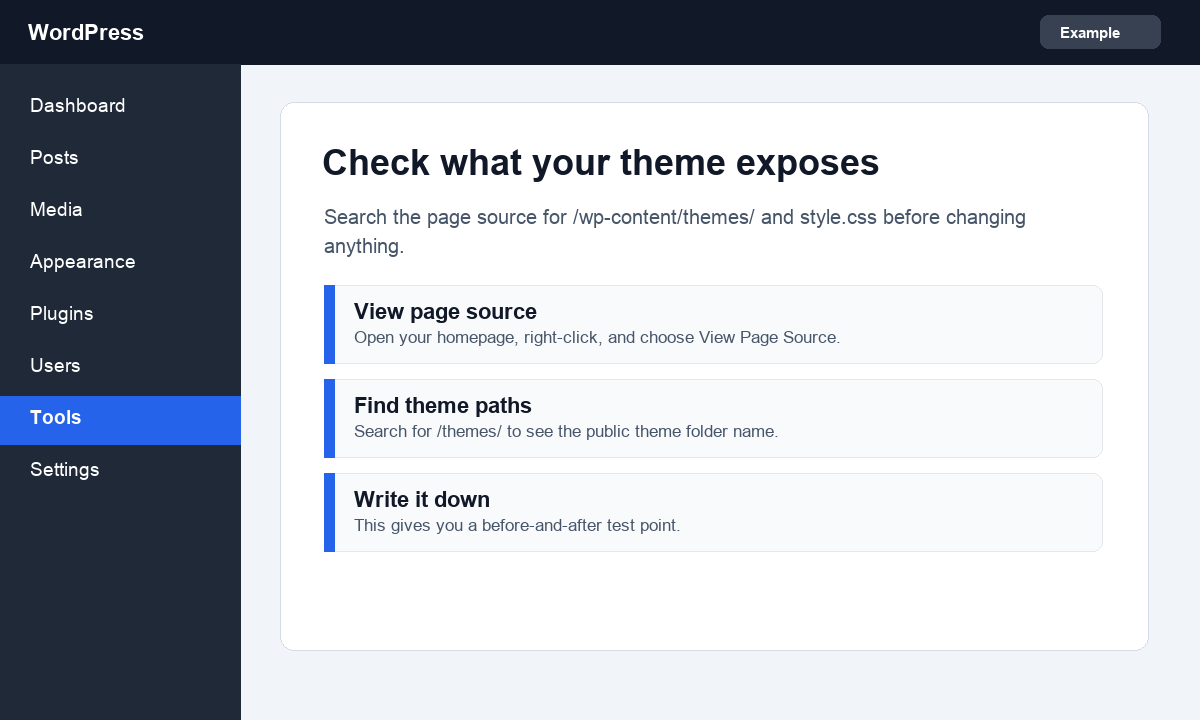
- Open your homepage in a private browser window.
- Right-click anywhere on the page and choose View Page Source.
- Use Ctrl + F on Windows or Command + F on Mac.
- Search for
/wp-content/themes/,style.css, or the name of your active theme.
If you see a URL like <code>/wp-content/themes/astra/style.css</code>, then the theme folder name is visible. This is normal WordPress behavior, but it also means theme detector tools may be able to identify your theme.
If you are changing theme files, you may also like our guide on what to do before changing WordPress themes.
Method 2: Use a Child Theme With a Custom Name
If your main concern is the public theme name, the safest manual method is to use a child theme with a custom folder name and custom style.css header. This avoids editing the parent theme directly.
A child theme lets you keep the parent theme updated while showing a cleaner public theme name. For example, instead of showing a common theme folder like <code>generatepress</code>, your site can use a child theme folder like <code>howtowp-theme</code>.
- Create a child theme for your active theme, or ask your developer to create one.
- Give the child theme folder a simple custom name, such as
my-site-theme. - Open the child theme
style.cssfile and change theTheme Nameline to your custom name. - Upload the child theme to
wp-content/themes/. - Go to Appearance > Themes and activate the child theme.
Do not rename the parent theme folder. That can break updates and may break the site if the parent theme is required by the child theme.
Method 3: Hide Theme Paths With a Plugin
For most beginners, a plugin is the easier method. Plugins such as <a href=”https://wordpress.org/plugins/wp-hide-security-enhancer/” target=”_blank” rel=”noreferrer noopener nofollow”>WP Hide & Security Enhancer</a> can rewrite common WordPress paths so the public theme folder is not as obvious.
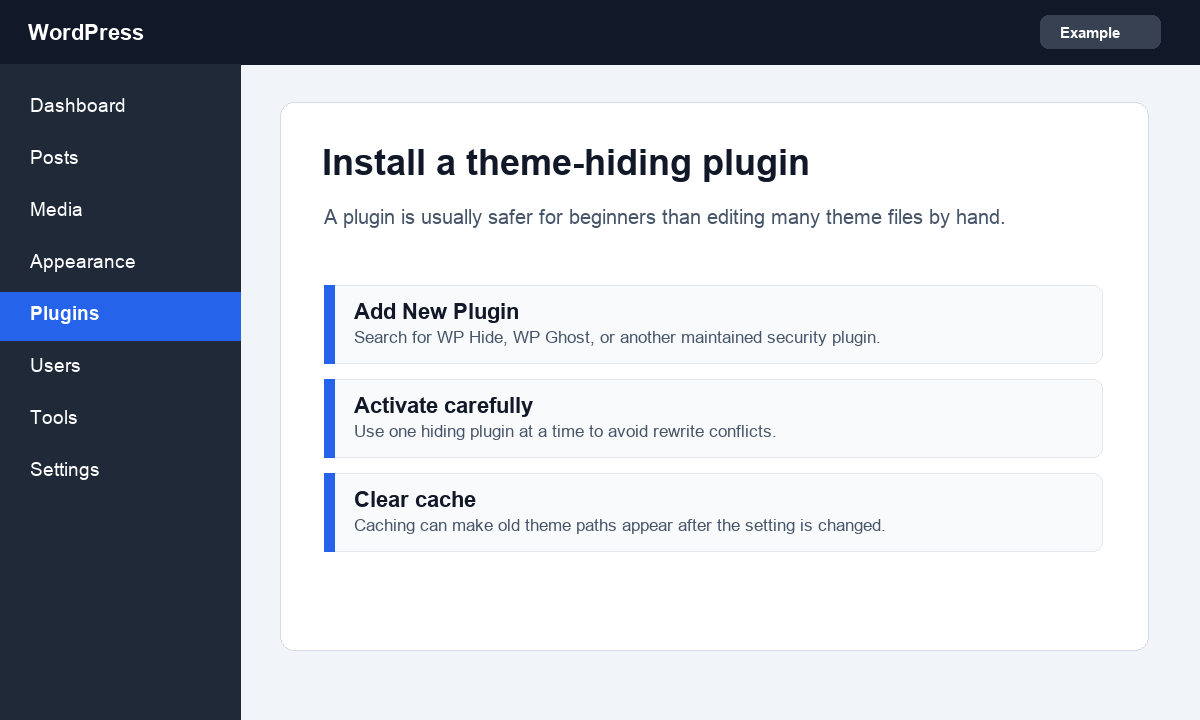
- Go to Plugins > Add New in your WordPress dashboard.
- Search for a maintained plugin such as WP Hide & Security Enhancer or a similar hiding plugin.
- Install and activate the plugin.
- Open the plugin settings from the WordPress sidebar.
Use only one plugin for this job. Running multiple hiding plugins together can create rewrite conflicts, missing CSS files, or broken admin pages.
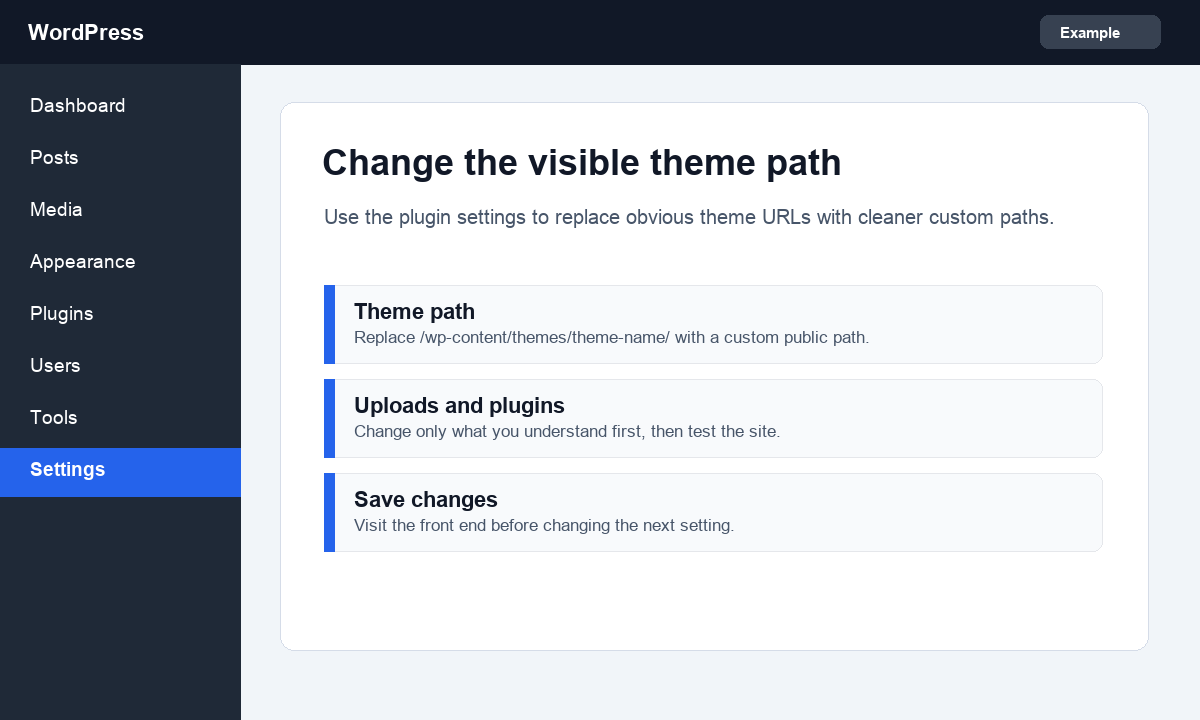
Look for settings related to theme URLs, uploads URLs, plugin URLs, and common WordPress paths. Start with the theme path only. Save the setting, open the front end, and confirm that your design still loads correctly before changing another option.
Method 4: Remove Obvious Version Fingerprints
Some sites also expose extra WordPress fingerprints, such as the WordPress generator tag or version query strings on CSS and JavaScript files. Removing these does not hide every theme detail, but it can reduce unnecessary public information.
If you are comfortable with code, add the snippet below to a small site-specific plugin or your child theme functions.php file. Do not add it to the parent theme, because the change can disappear after a theme update.
remove_action( 'wp_head', 'wp_generator' );

function howtowp_remove_version_query_string( $src ) {
    if ( strpos( $src, 'ver=' ) ) {
        $src = remove_query_arg( 'ver', $src );
    }

    return $src;
}
add_filter( 'style_loader_src', 'howtowp_remove_version_query_string', 9999 );
add_filter( 'script_loader_src', 'howtowp_remove_version_query_string', 9999 );
If code snippets make you nervous, skip this method and use a plugin instead. A broken functions.php file can make your site show a fatal error.
Final Step: Clear Cache and Test Again
After hiding theme details, clear every cache layer you use. That may include your caching plugin, hosting cache, CDN cache, and browser cache.
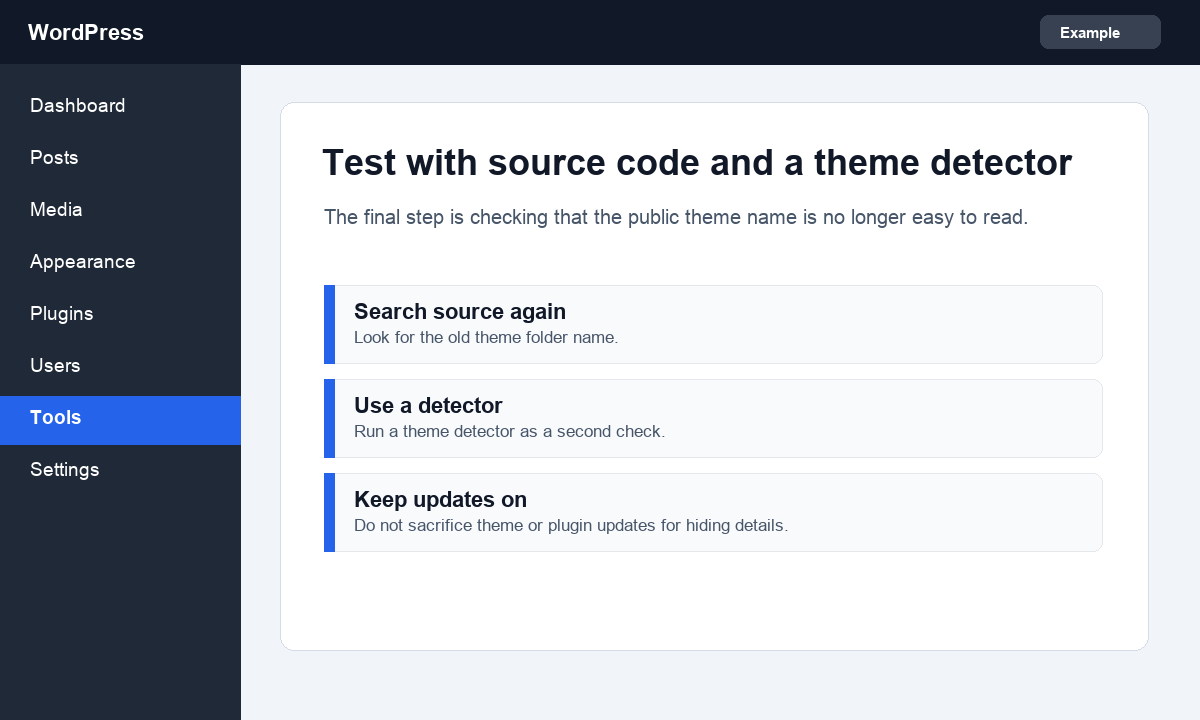
- Open your homepage in a private browser window.
- View the page source again.
- Search for the old theme folder name.
- Open a few important pages, including your homepage, blog posts, contact page, and WooCommerce pages if you have a store.
- Run a theme detector tool as a second check.
If your layout looks broken, undo the last setting you changed and clear cache again. Most problems happen when CSS or JavaScript paths are changed too aggressively.
Best Practices
- Do not hide theme details at the cost of updates. An outdated hidden theme is still risky.
- Use a child theme for custom names and custom code.
- Keep a backup before changing rewrite settings.
- Avoid hiding admin URLs unless you understand login, REST API, and AJAX behavior.
- Pair this with real hardening steps. Start with our WordPress security statistics if you want to understand why security basics matter.
Summary
Hiding WordPress theme details can make your site feel cleaner and less easy to copy, but it is not a magic security fix. Start by checking what is visible, use a child theme when you need a custom theme name, and use a maintained hiding plugin if you want to change public theme paths.
The safest approach is slow and simple: change one thing, clear cache, test the front end, and only then move to the next setting.
FAQs
Can I completely hide that my site uses WordPress?
Not completely. You can hide some common paths and fingerprints, but a determined person can often still detect WordPress from behavior, assets, REST API routes, or plugin output.
Is hiding my WordPress theme good for security?
It can reduce public fingerprints, but it is not a replacement for updates, backups, strong passwords, SSL, and a security plugin or firewall.
Should I rename my active theme folder?
No, not on a live site. Renaming a parent theme folder can break updates and sometimes break the site. Use a child theme with a custom name instead.
Why does my old theme name still show after changing settings?
Usually because of cache. Clear your caching plugin, hosting cache, CDN cache, and browser cache, then check the page source again.
Can a plugin break my design when hiding theme paths?
Yes. If CSS, JavaScript, font, or image paths are rewritten incorrectly, the front end can look broken. Change one setting at a time and test after each change.
Subscribe to our Weekly Newsletter
Get weekly updates of WordPress tips, tricks, and tutorials in your email.
Thanks. You have successfully subscribed.


![How to Duplicate Menus in WordPress [4 Proven Methods]](https://codingheros.com/wp-content/webp-express/webp-images/uploads/2024/11/how-to-duplicate-menus-in-wordpress-4-proven-methods.png.webp)