Duplicate meta descriptions are one of those WordPress SEO issues that look small at first, but they can quietly make your search results messy.
You open an SEO audit tool, expecting to see a few warnings, and then you notice the same sentence repeated on dozens of posts and pages. Sometimes it is your site tagline. Sometimes it is a default SEO plugin template. Sometimes it is an old setting left behind after changing SEO plugins.
The good news is that this is very fixable. You do not need to rebuild your site or rewrite every article from scratch. You just need to find the affected URLs, write a unique description for the important pages, and noindex the low-value pages that should not appear in Google anyway.
In this article, you will learn how to find and fix duplicate meta descriptions in WordPress step by step.
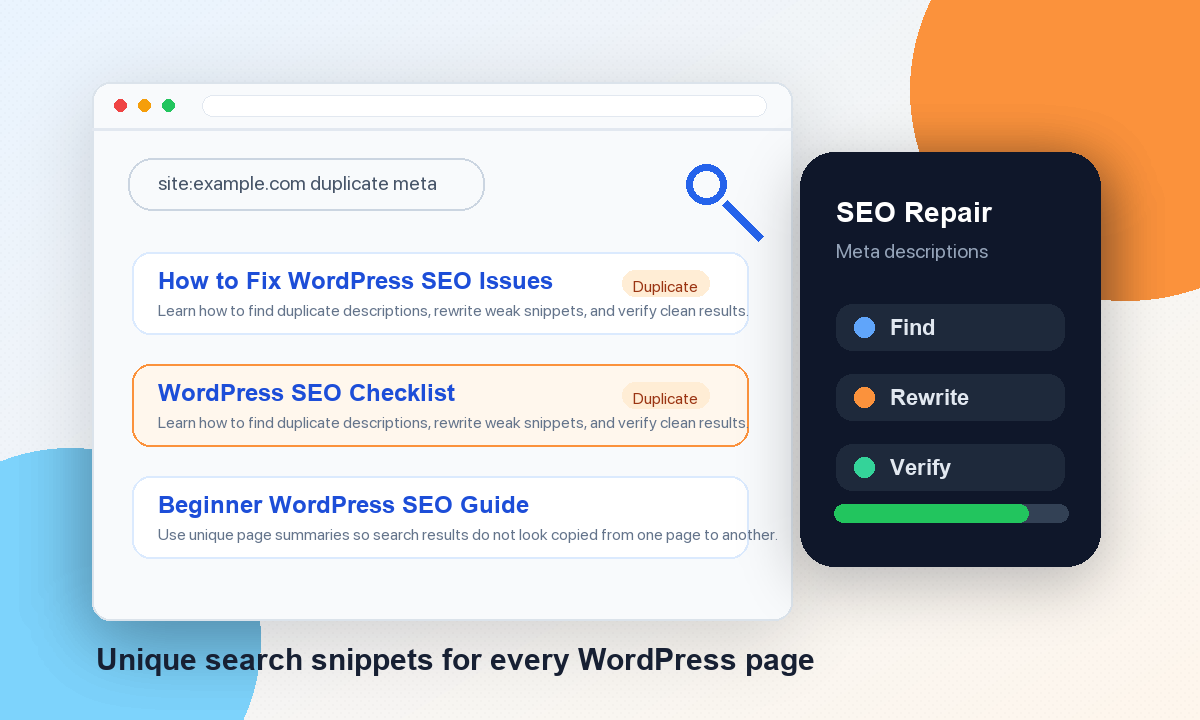
Table of Contents
What Are Duplicate Meta Descriptions?
A meta description is a short summary of a page. It is added inside the HTML head of your page and looks something like this:
<meta name="description" content="Learn how to fix duplicate meta descriptions in WordPress." />Duplicate meta descriptions happen when two or more different URLs use the same description. For example, your homepage, blog archive, and 20 posts might all use:
WordPress Tutorials for Beginners
That description may be fine for a homepage, but it is not useful for an AdSense tutorial, a WordPress speed guide, a theme selection guide, and a hosting article at the same time.
Google says identical or similar descriptions on every page are not helpful when individual pages appear in search results. Google may use the meta description to create the search snippet when it describes the page better than the visible content, but it can also rewrite the snippet if your description is not useful enough. You can read Google’s own guidance on snippets in Google Search Central.
Do Duplicate Meta Descriptions Hurt SEO?
Duplicate meta descriptions are not usually a direct Google penalty. Google is not going to ban your site because two pages share the same snippet.
But they can still hurt your SEO in a practical way.
- Your pages look less useful in the search results.
- Google may ignore your description and pull random text from the page.
- Users may not understand which result is the right one to click.
- Important pages can start competing with the same generic message.
- SEO audit tools will keep flagging the same issue until it is fixed.
If you are already working on on-page SEO in WordPress, then your meta descriptions should not be ignored. They are not magic ranking buttons, but they help your page earn the click when it already appears in search.
Why This Happens in WordPress
WordPress itself does not force every page to use the same description. The problem usually comes from the way your theme, SEO plugin, or page builder outputs metadata.
Here are the most common reasons I see this issue on WordPress sites:
- An SEO plugin uses the same default description for every post.
- The site tagline is used as a fallback meta description.
- Two SEO plugins are active at the same time and both output meta tags.
- The theme adds its own description while your SEO plugin adds another one.
- Blog archives, category pages, author pages, and pagination reuse the same template.
- Old metadata was imported from another plugin and never cleaned up.
This is why the fix should start with a crawl. Guessing from the WordPress dashboard alone can waste a lot of time.
Step 1: Find the Duplicate Meta Descriptions
First, you need a list of URLs that have the same description. You can use an SEO crawler like Screaming Frog, Ahrefs Site Audit, Semrush Site Audit, Sitebulb, or any WordPress SEO tool that checks metadata.
If you are using SEO Repair Kit, check your technical SEO reports and metadata tools first. Since it already lives inside WordPress, it is a good place to start before moving to external crawlers.
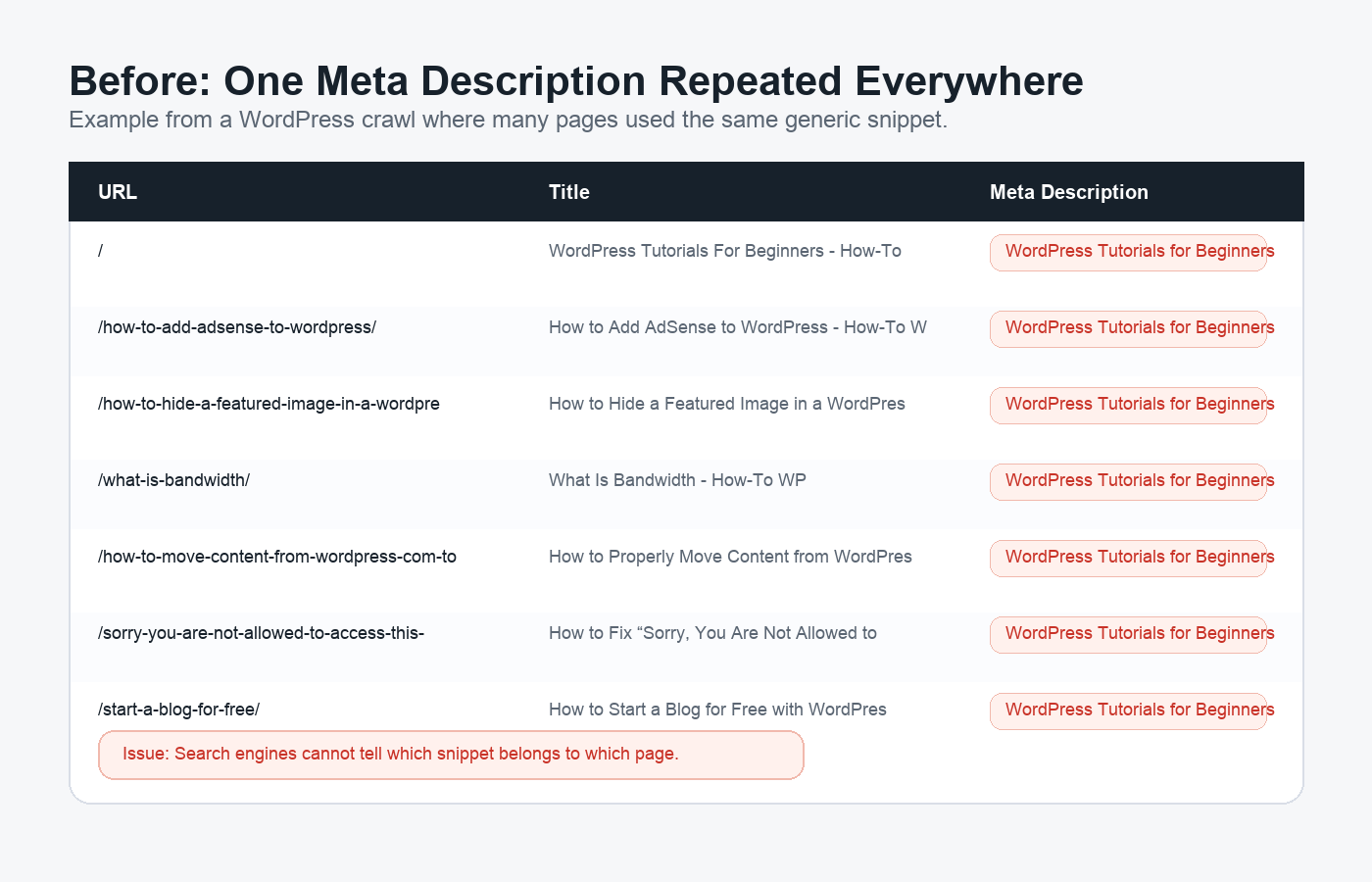
When reviewing the crawl, do not panic if you see a long list. Sort the results into three groups:
- Important posts and pages that should rank in Google.
- Archive pages like blog, category, tag, author, and date archives.
- Low-value URLs like search results, reply comment URLs, and paginated archives.
The first group needs unique descriptions. The second group needs either a proper description or a noindex decision. The third group usually should not be indexed.
Step 2: Check the Page Source
Before changing settings, check a few pages manually. This tells you whether the problem is really the meta description tag or just a crawler misunderstanding.
Open one affected page in your browser, right-click, and select View Page Source. Then search for:
name="description"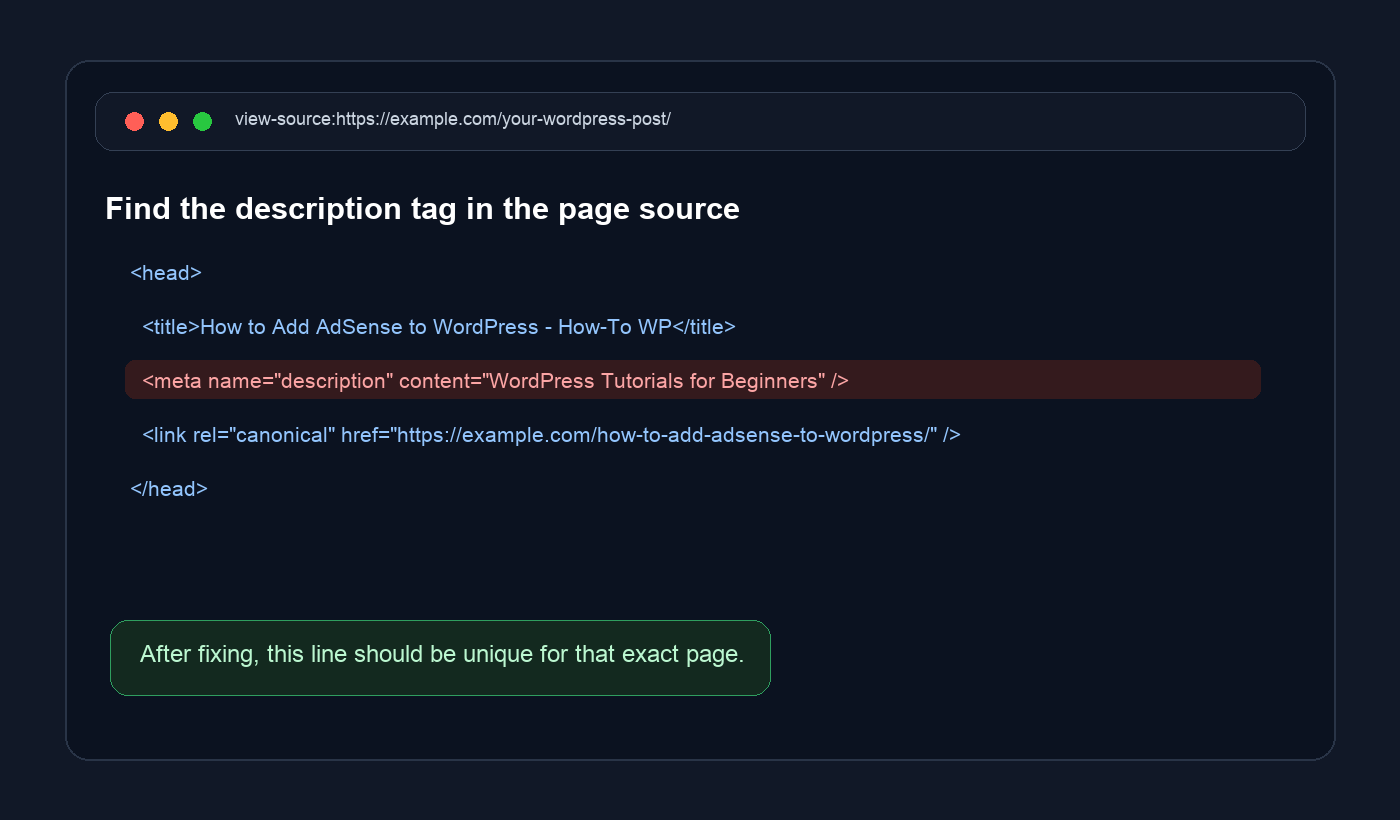
You should see only one meta description tag. If you see two description tags, then your theme and SEO plugin may both be outputting metadata. In that case, disable the theme SEO setting or remove the extra SEO plugin.
Using one SEO plugin is important. If you are using SEO Repair Kit, then keep your older SEO plugin inactive unless you are only using it for a very specific feature that does not output metadata.
Step 3: Decide Which Pages Should Be Indexed
Not every URL deserves a custom meta description. This is where many beginners waste time.
Your main posts, pages, tutorials, service pages, product pages, and important category pages should have unique descriptions. These are pages you actually want people to find from Google.
But some WordPress URLs are not useful search results by themselves. For example:
- Internal search result pages
- Author archives on single-author blogs
- Date archives
- Paginated blog pages like
/blog/page/2/ - Comment reply URLs with
?replytocom=
For these URLs, it is often better to use noindex, follow instead of writing descriptions for every variation. This allows search engines to follow the links on the page without adding that low-value URL to the index.
Step 4: Write Unique Meta Descriptions
Now comes the part that matters most: writing a description that actually fits the page.
A good meta description should tell the reader what they will learn, include the main keyword naturally, and give them a reason to click. Keep it short enough that it does not get cut off too badly in the search results.
Here is a simple formula you can use:
Learn how to [solve the problem] in WordPress using [method/tool] so you can [benefit].
For example, instead of writing:
WordPress Tutorials for Beginners
You can write:
Learn how to add Google AdSense to WordPress, place ad code safely, and check that ads are loading on your website.
That second version is much better because it is specific. It tells the reader exactly what the article is about.
Meta Description Tips
- Use the page’s main keyword once, naturally.
- Do not stuff keywords just to make the plugin score look better.
- Write a summary, not a slogan.
- Do not use the same sentence on similar posts.
- Try to stay around 120 to 160 characters where possible.
If you want to understand how meta tags work in general, then you can also read our guide on how to add meta tags in WordPress.
Step 5: Fix the Description in SEO Repair Kit
Once you have written a unique description, open the post or page in WordPress and scroll to the SEO Repair Kit meta fields.
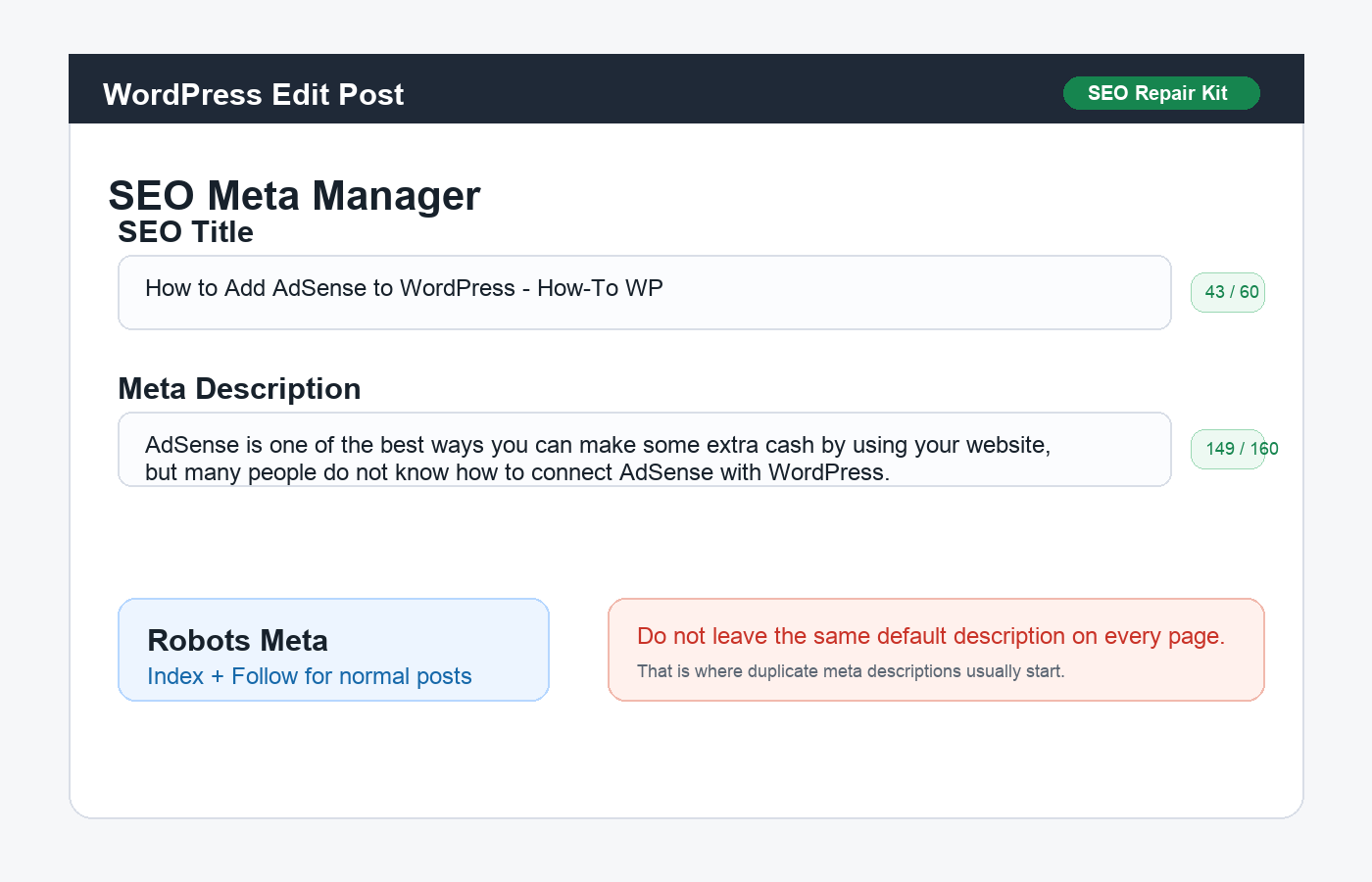
- Go to Posts or Pages in your WordPress dashboard.
- Open the page that has a duplicate description.
- Find the SEO Repair Kit meta title and description fields.
- Add a unique SEO title if the current title is too long or too generic.
- Add a unique meta description that matches the page.
- Update the post or page.
Do this for your most important posts first. If your site has hundreds of posts, start with pages that already get impressions in Google Search Console or pages that are linked from your homepage and main menu.
Step 6: Fix WordPress Archive Pages
Archive pages are a little different from normal posts. A blog archive, category archive, or author archive may not have the same editing screen as a page.
For important archive pages, write a unique description. For example, your main blog page can have a description like:
Browse beginner-friendly WordPress tutorials on blogging, SEO, speed, security, plugins, themes, hosting, and site fixes.
For low-value archives, use noindex instead. This is usually better for author archives on a single-author site, date archives, internal search pages, and paginated archive pages.
That way, Google can focus on your real tutorials instead of crawling thin archive variations.
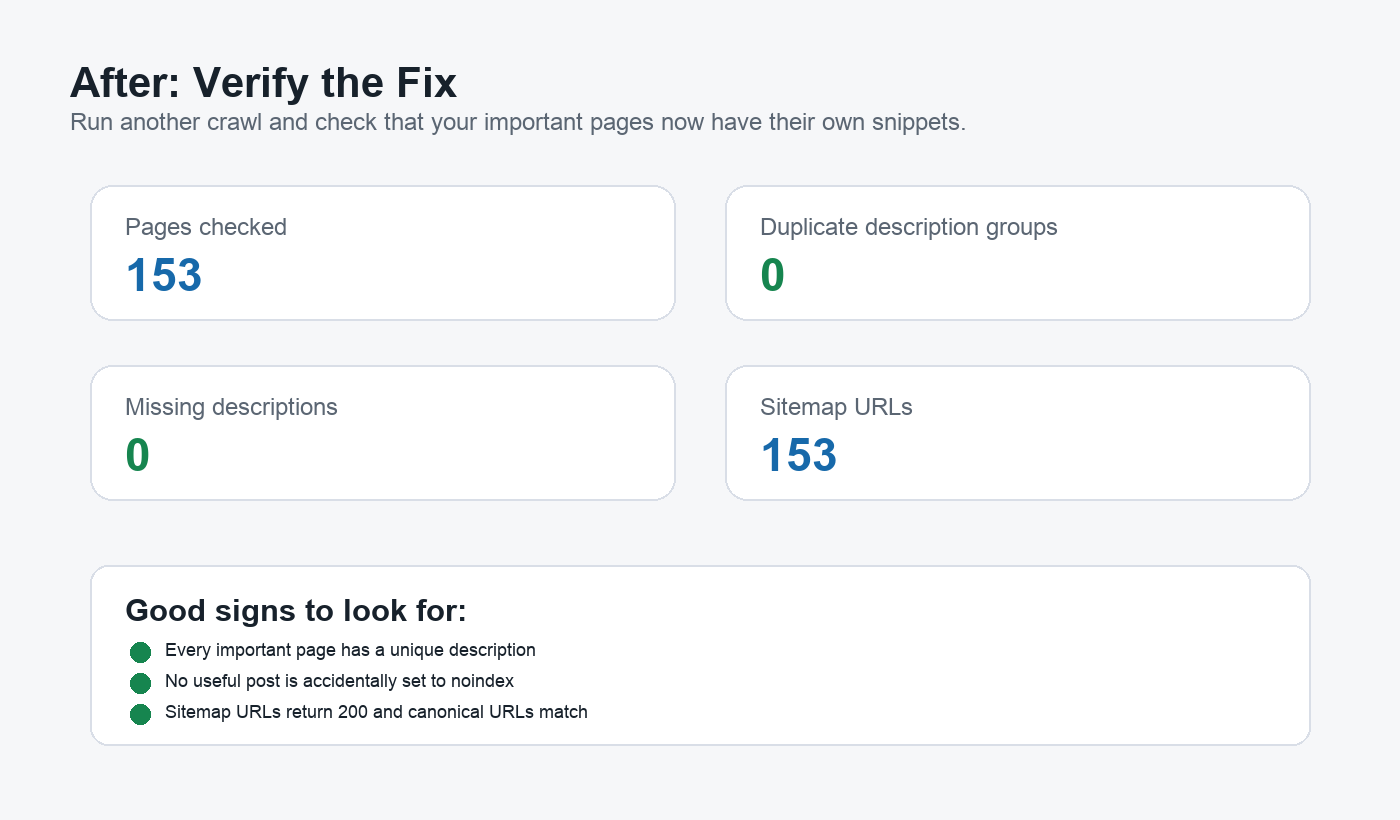
Step 7: Clear Cache and Crawl Again
After updating your metadata, clear your WordPress cache. If you use a caching plugin, CDN, or server-level cache, clear those as well. Otherwise, your crawler may still see the old description for a while.
Then crawl the site again and check these items:
- Duplicate meta description groups should be gone or reduced.
- Important posts should have one unique meta description.
- Low-value archives should be noindex if you do not want them ranking.
- Your XML sitemap should include only useful indexable URLs.
Good and Bad Meta Description Examples
Here are a few examples to make this easier.
| Page | Bad Description | Better Description |
|---|---|---|
| WordPress speed guide | WordPress Tutorials for Beginners | Learn how to speed up WordPress using caching, image optimization, plugin cleanup, and simple performance fixes. |
| Meta tags guide | Best WordPress tips and tricks | Learn how to add meta tags in WordPress using an SEO plugin and check that your title and description appear correctly. |
| Staging site guide | WordPress blog articles | Learn how to create a WordPress staging site so you can test updates safely before changing your live website. |
The better examples are not longer just for the sake of being longer. They are better because they match the exact page.
Quick Checklist
- Crawl your WordPress site and export duplicate descriptions.
- Check a few pages manually using View Page Source.
- Make sure only one SEO plugin is outputting metadata.
- Write unique descriptions for important posts and pages.
- Noindex low-value archives and URL parameters.
- Clear your cache after making changes.
- Crawl again and verify the duplicate groups are fixed.
Summary
Duplicate meta descriptions in WordPress are common, especially on sites that have changed SEO plugins, used default templates, or left archive pages untouched.
The fix is simple when you break it down. Find the duplicate descriptions, check the source code, write unique snippets for important pages, noindex low-value URLs, clear your cache, and verify the site again.
Do not try to make every page perfect in one sitting. Start with the posts and pages that matter most. That alone can clean up your search appearance and make your WordPress site look much more useful in the SERPs.
FAQ’s
How long should a WordPress meta description be?
There is no fixed character limit, but a practical range is around 120 to 160 characters. The main goal is to write a clear summary that matches the page and makes sense in search results.
Will Google always use my meta description?
No. Google can rewrite snippets depending on the search query. Still, a good meta description gives Google a strong option to use and helps you control the message better.
Should every WordPress page have a unique meta description?
Every important indexable page should have one. Low-value pages like internal search results, author archives on single-author blogs, and paginated archives usually do not need unique descriptions because they are often better set to noindex.
Can I use the same meta description for similar posts?
It is better not to. Even if two posts are similar, each page should have a description that explains what makes that specific page useful.
Can duplicate meta descriptions happen after changing SEO plugins?
Yes. This is very common. Old metadata, fallback templates, and multiple active SEO plugins can all cause duplicate or multiple meta description tags. After changing SEO plugins, crawl your site and check the page source on a few important URLs.
Subscribe to our Weekly Newsletter
Get weekly updates of WordPress tips, tricks, and tutorials in your email.
Thanks. You have successfully subscribed.


![How to Center Title in WordPress [A Beginner's Visual Guide]](https://codingheros.com/wp-content/webp-express/webp-images/uploads/2024/06/how-to-center-title-in-wordpress-a-beginners-visual-guide.png.webp)

![How to Download Images from WordPress Media Library [4 Ways]](https://codingheros.com/wp-content/webp-express/webp-images/uploads/2025/05/how-to-download-images-from-wordpress-media-library-4-ways.png.webp)
