To add a blockquote in WordPress, type /quote in the block editor, press Enter and type or paste the quote. To add who said it, select the Quote block and click Add citation in its toolbar. The Quote block saves your text inside an HTML blockquote element, so you don’t need a plugin or any code.
I tested every step in this guide on WordPress 7.1.4 in November 2026, with the Twenty Twenty-Five, Twenty Twenty-One and Kadence themes. The quotes in the examples are from Abraham Lincoln’s Gettysburg Address and Franklin D. Roosevelt’s first inaugural address, which are both in the public domain.
What Is a Blockquote and When Should You Use One?
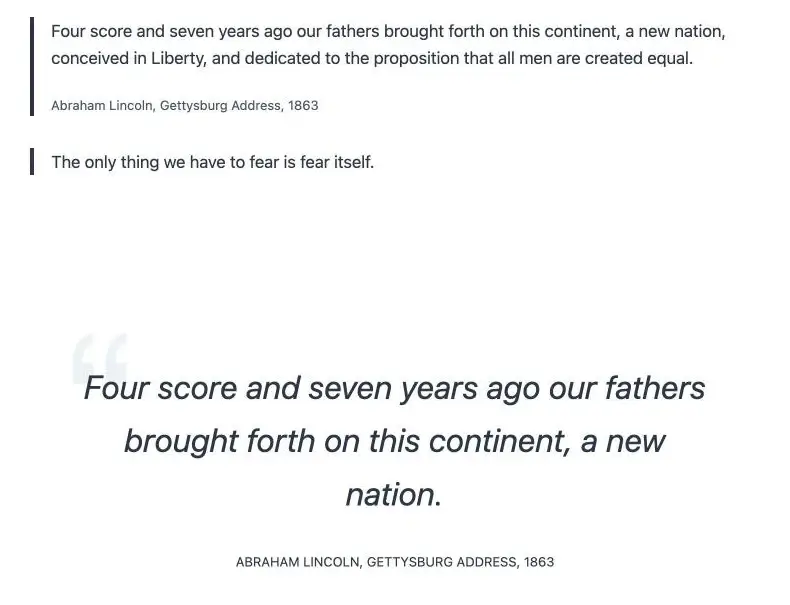
A blockquote is a block of text that you quote from another source, such as a book, a speech, a study or another website. Browsers and themes usually set it apart from the rest of the post with an indent, a border or a quote mark, so readers can see at a glance that the words are not yours.
Use it for longer quotes that deserve their own space. For a few words inside a sentence, normal quotation marks are enough. And don’t use a blockquote just to indent a note or a tip. Screen readers announce a blockquote as a quotation, so a note dressed up as a quote can confuse visitors who use them. For notes, a Group block with a background color works better.
How to Add a Blockquote in the Block Editor
- Open the post or page and click where you want the quote.
- Type
/quoteand press Enter. You will see three related blocks in the list: Quote, Pullquote and Poetry. Choose Quote. - Type or paste the quoted text.

You can also type > followed by a space at the start of an empty paragraph. In my test, that turned the paragraph into a Quote block straight away.
The Quote block works like a container: the text you type is a normal Paragraph block inside it. That means you can add more than one paragraph, a list or even an image to the same quote.

How to Leave a Quote Block
This is the part that trips people up. When you press Enter at the end of the quote, WordPress adds a new empty line inside the same quote, not after it.
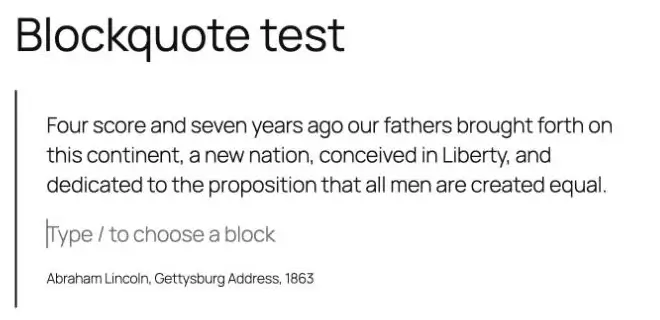
Press Enter a second time on that empty line. WordPress removes the empty line from the quote and starts a normal paragraph below it.
How to Turn an Existing Paragraph Into a Quote
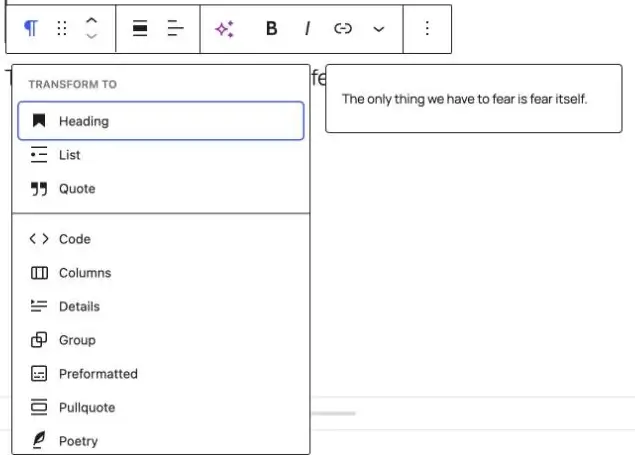
If the text is already in your post, click the paragraph, click the paragraph icon at the left of the block toolbar and choose Quote under Transform to.
How to Add a Citation to a Blockquote
A citation tells readers where the quote comes from. To add one, select the Quote block itself, not the text inside it. The quickest way is to click Quote in the breadcrumb at the bottom of the editor. Then click Add citation in the block toolbar. It’s the feather icon next to the alignment buttons.
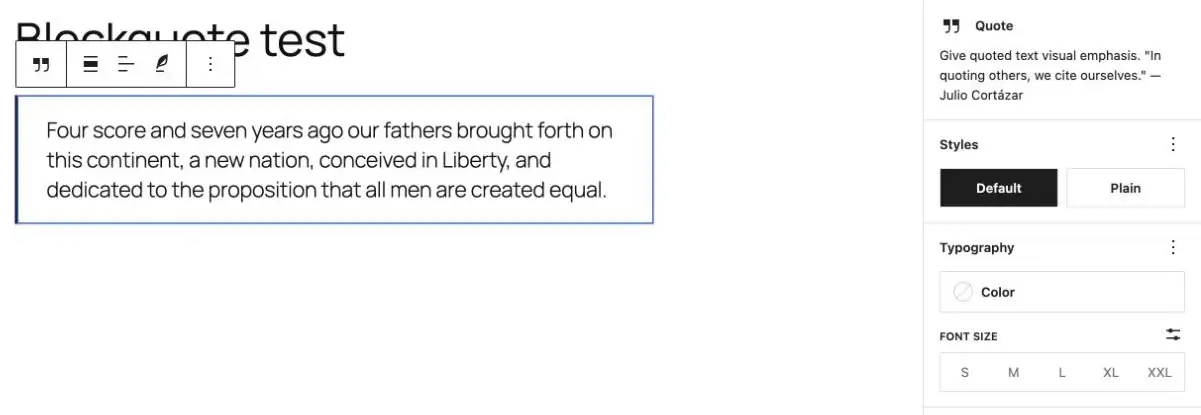
Type the name of the person and, if you like, the source and year. You can select part of the citation and click the link button to link to the original source.
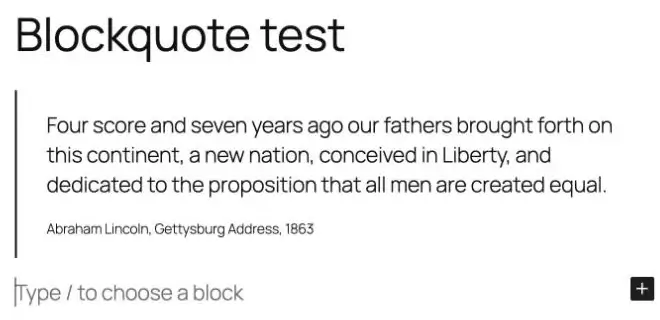
A small technical note, in case you care about clean HTML. WordPress saves the citation as a cite element inside the blockquote. The HTML standard suggests putting the person’s name outside the blockquote and using cite only for the title of a work. Browsers and search engines handle WordPress’s version without any problem, so for most sites this is nothing to worry about. If you want the strict version, use the HTML method further down.
Quote vs Pullquote vs Poetry: Which Block Should You Use?
All three appear when you search for “quote”, but they do different jobs. Here’s what each one saved on my test site.
| Block | What it’s for | What WordPress saves | Citation |
|---|---|---|---|
| Quote | Quoting another source | blockquote with a cite inside |
Yes |
| Pullquote | Highlighting a line from your own article in large text | figure with a blockquote inside |
Yes |
| Poetry (called Verse before) | Poems and song lyrics where line breaks matter | pre element, not a blockquote |
No |
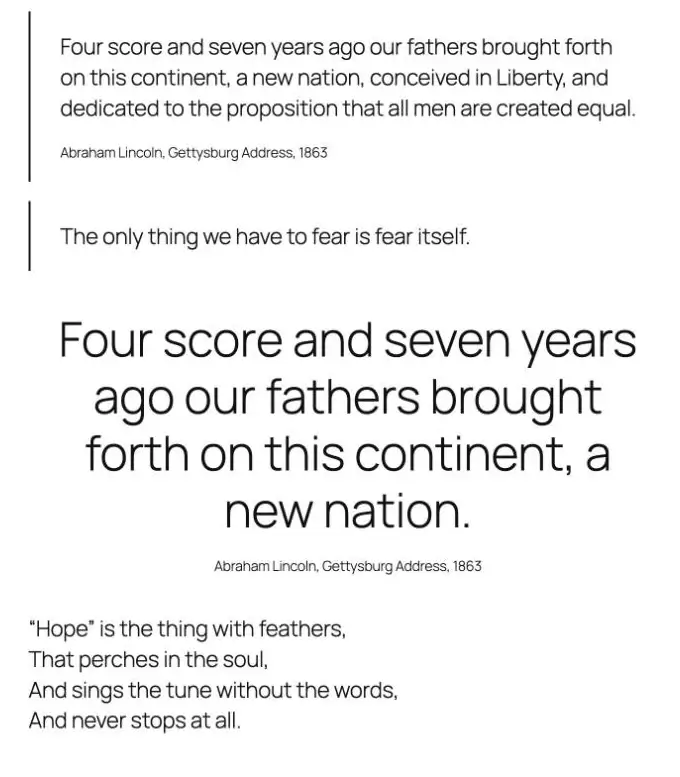
In WordPress 7.1 the old Verse block is called Poetry in the inserter. It works the same way. You can read more in the official Quote block and Pullquote block documentation.
How to Style One Blockquote With Block Settings
Select the Quote block and open the settings sidebar. In WordPress 7.1 you get:
- Styles: Default or Plain. Plain gives the quote a simpler look, and what it removes depends on your theme.
- Typography: text color and font size.
- Background: a color, gradient or image.
- Dimensions and Border: padding, margin, border width, style, color and radius.
The options you see can vary a little with your theme. These settings change only the block you selected. If you want to change the size of the quote text, my guide on changing the font size in WordPress covers the font size controls in more detail.
How to Style Every Blockquote on Your Site
Block Themes: Use the Styles Panel
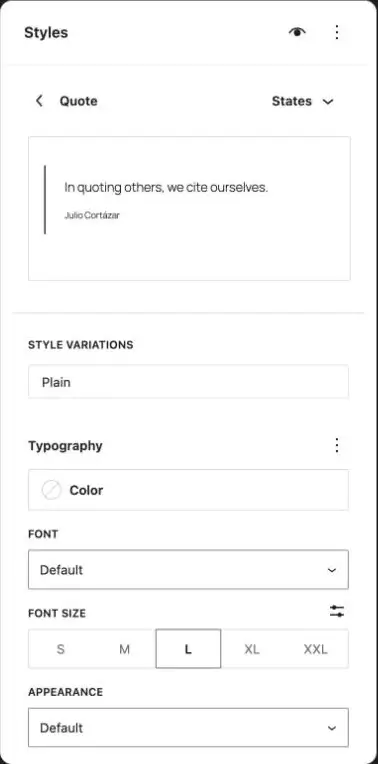
If you use a block theme such as Twenty Twenty-Five, go to Appearance > Editor > Styles, open Blocks and choose Quote. Changes here apply to every Quote block on the site, and you can switch every quote to the Plain style variation in one place.
Any Theme: Add Custom CSS
For a classic theme, go to Appearance > Customize > Additional CSS. In a block theme, go to Appearance > Editor > Styles, click the three dots at the top of the Styles panel and choose Additional CSS. Paste one of the snippets below and click Publish or Save.
One thing I learned while testing: a simple blockquote selector also styles the blockquote hidden inside every Pullquote block. The selector in these snippets skips Pullquotes but still catches Quote blocks and blockquotes from the Classic Editor. I tested each snippet on Twenty Twenty-Five, Twenty Twenty-One and Kadence, on a desktop screen and a 390 pixel wide phone screen.
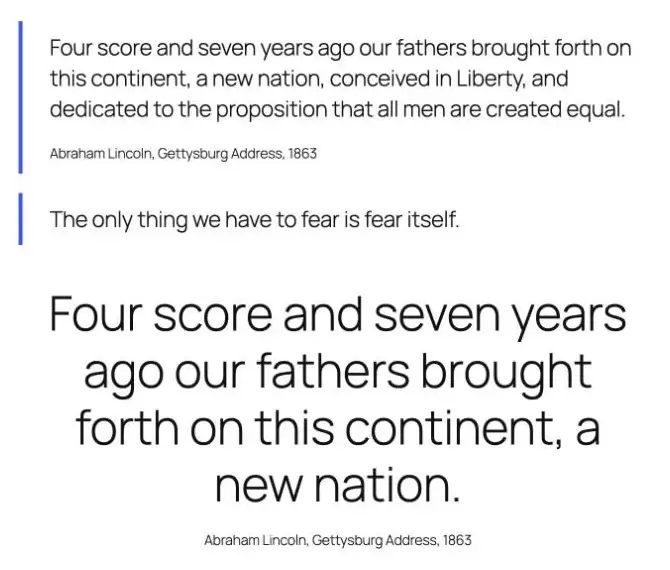
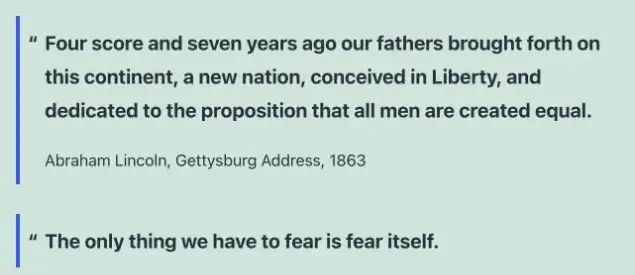
1. Colored left border
blockquote:not(.wp-block-pullquote blockquote) {
  border-left: 4px solid #3858e9;
  margin-inline: 0;
  padding: 0.5em 0 0.5em 1.25em;
}
blockquote:not(.wp-block-pullquote blockquote)::before {
  content: none;
}
The second rule removes the small quote mark that some themes, like Twenty Twenty-One, add on their own.
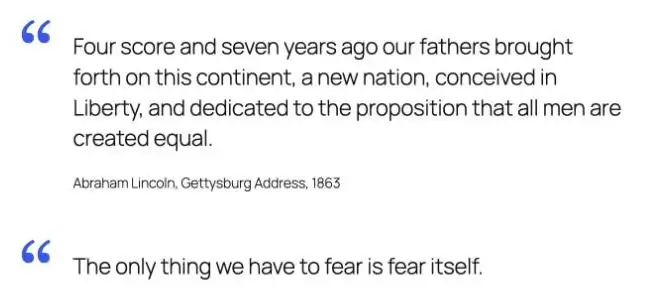
2. Large quote mark
blockquote:not(.wp-block-pullquote blockquote) {
  position: relative;
  border-left: 0;
  padding-left: 2.5em;
}
blockquote:not(.wp-block-pullquote blockquote)::before {
  content: "201C";
  position: absolute;
  left: 0;
  top: 0;
  font-family: Georgia, serif;
  font-size: 4em;
  line-height: 1;
  color: #3858e9;
}
3. Card with a light background
blockquote:not(.wp-block-pullquote blockquote) {
  background: #f3f6fa;
  border-left: 0;
  border-radius: 8px;
  padding: 1.25em 1.5em;
}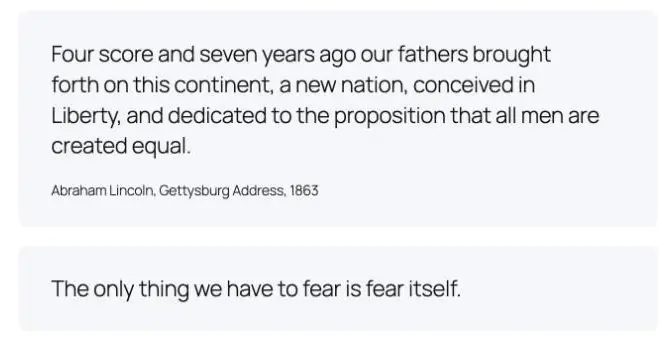
Change #3858e9 and #f3f6fa to your own brand colors. Use only one snippet at a time, because they style the same element.
Why Your Blockquote CSS Isn’t Working
- Your theme adds its own decoration. Twenty Twenty-One, for example, adds a quote mark with
::before, so a new border shows up next to the old mark. Reset it withcontent: none, as in snippet 1. - A block setting wins. Colors, borders or font sizes set on one block in the sidebar are saved on that block and can override your CSS. Clear them in the block settings.
- You’re seeing a cached page. Clear your caching plugin and do a hard reload.
- The selector doesn’t match. Right-click the quote, choose Inspect, and check that it’s a
blockquote. Page builders often use their own markup.
How to Add a Blockquote in the Classic Editor
If you use the Classic Editor plugin, select the text and click the Blockquote button in the toolbar. It’s the button with the quote mark icon. The keyboard shortcut is Alt + Shift + Q on Windows and Control + Option + Q on a Mac.
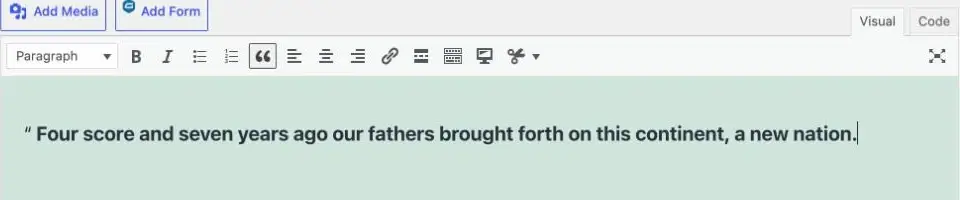
Typing > and a space did not create a blockquote in the Classic Editor during my test, so use the button or the shortcut there.
How to Add a Blockquote With HTML
If you want full control over the markup, add a Custom HTML block and paste this. It keeps the person’s name outside the blockquote, as the HTML standard recommends, and links the quote to its source with the cite attribute.
<figure>
  <blockquote cite="https://www.loc.gov/exhibits/gettysburg-address/">
    <p>Four score and seven years ago our fathers brought forth on this continent, a new nation, conceived in Liberty, and dedicated to the proposition that all men are created equal.</p>
  </blockquote>
  <figcaption>Abraham Lincoln, <cite>Gettysburg Address</cite>, 1863</figcaption>
</figure>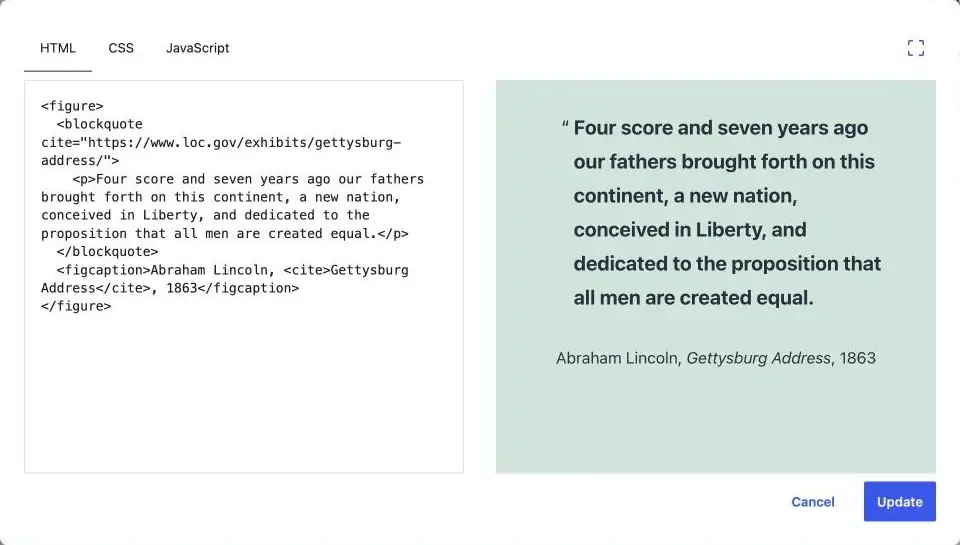
The snippets above style this version too, because it’s still a blockquote.
Blockquotes in Elementor and Kadence
Elementor: the dedicated Blockquote widget is part of Elementor Pro. On my lab site it came from Elementor Pro 4.4.0, and the free Elementor plugin doesn’t include it.
Kadence: the Kadence theme styles the normal Quote block with a dark left border out of the box, and all three CSS snippets above worked with it. You don’t need an extra block plugin.
Do You Need a Blockquote Plugin?
Usually not. The Quote block, its sidebar settings and a few lines of CSS cover what most sites need. A plugin is worth it only if you want ready-made designs, such as testimonial cards with photos, and don’t want to write CSS.
Frequently Asked Questions
How Do I Remove the Line Next to a Blockquote?
Try the Plain style in the Quote block settings first. If the line is still there, or you want to remove it from every quote, add blockquote:not(.wp-block-pullquote blockquote) { border-left: 0; } to your Additional CSS.
How Do I Remove the Quote Mark From a Blockquote?
If your theme adds a quote mark, add blockquote:not(.wp-block-pullquote blockquote)::before { content: none; } to Additional CSS. That’s what removed the Twenty Twenty-One quote mark in my test.
What’s the Difference Between a Blockquote and the q Element?
A blockquote is for a longer quote that sits on its own lines. The q element is for a short quote inside a sentence, and browsers add the quotation marks for you. The block editor has no button for q, so most people simply type quotation marks.
Can I Underline or Bold Text Inside a Quote?
Yes. The text inside a Quote block is a normal paragraph, so all the usual formatting works. Here’s how to underline in WordPress.
Subscribe to our Monthly Newsletter
Get monthly updates of WordPress tips, tricks, and tutorials in your email.
Thanks. You have successfully subscribed.


