If you’ve ever edited a WordPress postA post is a type of content in WordPress, a popular open-source content management system used for creating an… More and suddenly thought, “Wait… what did I just delete?” — you’re definitely not alone. From missing paragraphs and accidental overwrites to formatting changes that completely throw off your layout, content mistakes happen to everyone. This is exactly why WordPress revision history is such an important feature, especially for beginners who are still getting comfortable with the editor.
WordPress revision history feature works quietly in the background, automatically saving different versions of your postsA post is a type of content in WordPress, a popular open-source content management system used for creating an… More and pagesIn WordPress, a page is a content type that is used to create non-dynamic pages on a website. Pages are typica… More as you write. This means you can track changes over time, compare edits, and restore an earlier version whenever something doesn’t look right. Instead of panicking or trying to remember what you changed, you can simply roll back to a previous version in just a few clicks.
At first, this feature may feel hidden or a bit confusing. But once you understand how it works, it becomes one of the most powerful safety tools in WordPress. In this step-by-step beginner tutorial, you’ll learn what wordPress revision history is, how to access it, and how to use it confidently so you can edit your content without fear of losing your hard work.
What Is WordPress Revision History?
WordPress revision history is a built-in feature that keeps a record of every saved change you make to a post or pageIn WordPress, a page is a content type that is used to create non-dynamic pages on a website. Pages are typica… More. Each time you click Save Draft, Update, or WordPress autosaves your work, a new revision is created.
Think of revisions as a timeline of your content. You can:
- View older versions of your post
- Compare changes between revisions
- Restore a previous version instantly
This feature is especially helpful for:
- Beginners learning WordPress
- Bloggers editing long articles
- Teams collaborating on content
- Anyone worried about losing work
The best part? You don’t need a pluginA plugin is a software component that adds specific features and functionality to your WordPress website. Esse… More to use it. It is enabled by default.
How WordPress Revisions Work
To use WordPress revisions effectively, it helps to understand how they’re created behind the scenes.
Manual Revisions
A manual revision is created every time you:
- Click Save Draft
- Click Update
- Publish or republish a post
Each manual save becomes a separate version stored in the WordPress databaseA database is an organized collection of data stored and accessed electronically. It is a crucial component of… More. These are the revisions you’ll most often restore.
Autosave Revisions
WordPress also uses an autosave feature to protect your work. While you’re editing, WordPress automatically saves a temporary copy of your content about every 60 seconds.
Autosaves help prevent data loss due to:
- Browser crashes
- Internet connection issues
- Power outages
Autosave versions usually don’t overwrite your published content, but they can be recovered if something goes wrong.
Who Can Access WordPress Revisions?
Not every user roleIn WordPress, a user role is a set of permissions that determines what actions a user can perform on a website… More can access revision history. Typically:
- Administrators and Editors can view and restore revisions
- Authors can access revisions for their own posts
- Contributors may have limited access depending on site settings
How to Access WordPress Revision History
Accessing revisions depends on which WordPress editor you’re using.
Accessing Revisions in the Block Editor (Gutenberg)
If you’re using the WordPress Block Editor (GutenbergGutenberg is the name of a modern WordPress editor that was introduced with the release of WordPress 5.0 in De… More), follow these steps:
- Open the post or page you want to edit
- Look at the right-hand sidebar
- Click “Post” (if it’s not already selected)
- Find the “Revisions” section
- Click the number next to “Revisions”
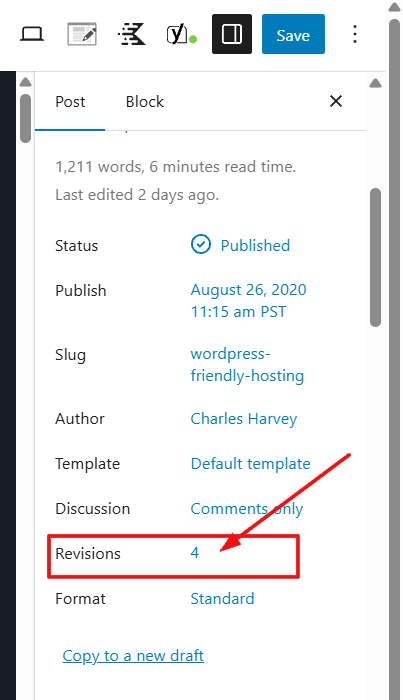
You’ll now see the revision comparison screen.
Accessing Revisions in the Classic Editor
If you’re using the Classic Editor, here’s how:
- Open the post or page
- Scroll down or look in the right sidebar
- Find the “Revisions” box
- Click “Browse”
This will open the revision comparison view.
How to Compare Revisions in WordPress
One of the most useful parts of WordPress revision history is the ability to compare changes between versions.
On the revision screen, you’ll see:
- A slider or navigation arrows
- Highlighted text showing additions and deletions
- Two versions displayed side by side (or one highlighted view)
How the Comparison Tool Works
- Green highlights usually show added content
- Red highlights show removed content
- You can slide through revisions chronologically
This is perfect when you’re asking:
- “What changed since yesterday?”
- “Where did that paragraph go?”
- “Which version was better?”
How to Restore a Previous Version in WordPress
Restoring a revision is simple and safe.
Step-by-Step: Restore a WordPress Revision
- Open the revision comparison screen
- Navigate to the version you want
- Review the highlighted changes
- Click “Restore This Revision”
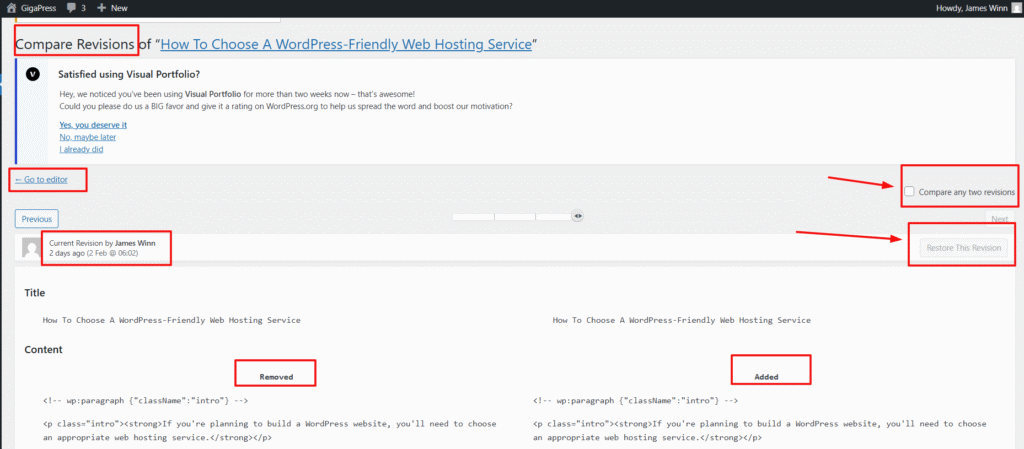
WordPress will instantly replace the current version with the selected revision.
💡 Beginner Tip: Restoring a revision does not delete other revisions. You can always go back again if needed.
WordPress Revision History for Posts vs Pages
WordPress revisions work the same way for:
- Blog posts
- Pages
- Most custom post typesA custom post type is a feature in WordPress that allows users to create their own content types, beyond the d… More
However, a few things to keep in mind:
- Some themesA WordPress theme is a set of files that determine the design and layout of a website. It controls everything … More or plugins may disable revisions for specific content
- Revisions don’t track changes to menusIn WordPress, a menu is a collection of links that are displayed as a navigation menu on a website. Menus are … More, widgetsA widget is a small block of content that performs a specific function and can be added to certain areas of a … More, or themeA WordPress theme is a set of files that determine the design and layout of a website. It controls everything … More settings
- Media files (like images) don’t have traditional revisions
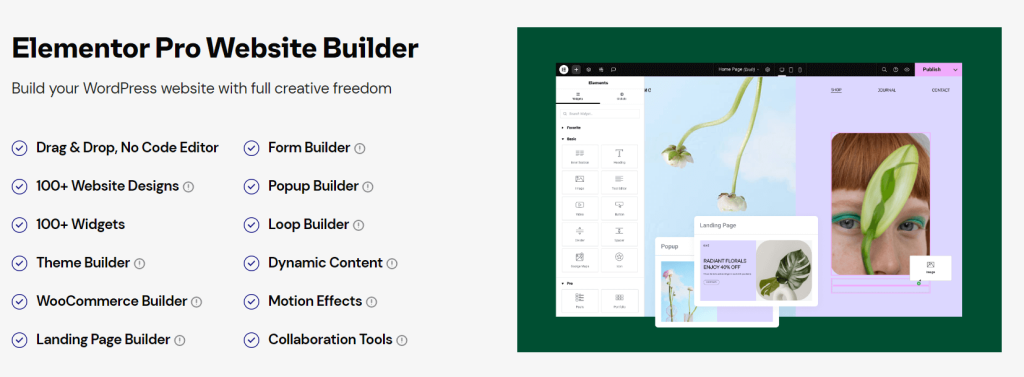
If you’re editing a page builder layout (like Elementor or Divi), revision behavior may vary depending on the builder.
Common WordPress Revision History Problems (and Fixes)
Even though revisions are reliable, beginners sometimes run into issues.
Revisions Not Showing Up
If you don’t see revisions:
- Make sure the post has been saved more than once
- Check your user permissions
- Confirm revisions haven’t been disabled in site settings
- Try switching to the default WordPress editor view
Too Many Revisions Slowing Down Your Site
By default, WordPress stores unlimited revisions, which can increase database size over time.
Signs this might be a problem:
- Slower admin dashboardIn WordPress, the Dashboard is a central hub for managing a website’s content and settings. It is the first sc… More
- Large database backups
- Hosting performance issues
For most beginners, this isn’t an immediate concern but it’s good to be aware of.
How to Limit or Disable WordPress Revisions (Optional)
If you want more control, you can limit the number of revisions stored.
When Limiting Revisions Makes Sense
- Large content sites
- High-traffic blogs
- Limited hosting resources
Common Methods
- Editing the wp-config.php file
- Using plugins designed to manage revisions
⚠️ Beginner Advice: Only disable revisions if you fully understand the trade-off. Revisions are a safety net.
Best Practices for Using WordPress Revision History
To get the most out of WordPress revisions, follow these tips:
- Save your post before making major edits
- Use revisions when collaborating with others
- Review changes before restoring a version
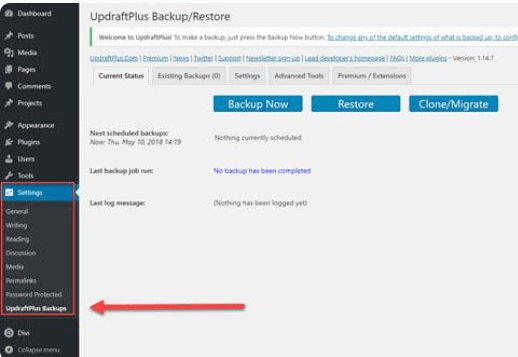
- Combine revisions with regular backups. Tools like UpdraftPlus or BlogVault make it easy to schedule automatic backups and restore your site if anything goes wrong
- Don’t panic—mistakes are reversible
Once you trust the revision system, editing becomes much less stressful.
Frequently Asked Questions About WordPress Revisions
How long does WordPress keep revisions? WordPress keeps revisions indefinitely unless limited or deleted.
Can WordPress revisions recover deleted posts? Revisions only work for existing posts. Deleted posts may be recovered from trash or backups.
Do WordPress revisions work with page builders? Yes, but behavior varies depending on the page builder.
Are image changes saved in revisions? No, revisions track content, not media file edits.
Final Thoughts: Why WordPress Revision History Matters
The wordPress revision history feature is one of those tools you don’t fully appreciate—until it saves you from a major mistake. For beginners especially, it acts like a built-in safety net, quietly protecting your work every time you save, update, or even pause while writing. It allows you to experiment, refine your ideas, and make changes confidently, knowing you can always roll back if something doesn’t look right.
Once you understand how to access, compare, and restore revisions, editing becomes far less stressful. You’ll spend less time worrying about errors and more time focusing on creating better content. Whether you’re running a personal blog or managing a growing website, mastering WordPress revisions is an essential skill that pays off every time you hit “Update.”
And remember—great tools work best with a solid foundation. If you’re serious about managing your site efficiently and getting the most out of wordPress revision history, reliable hosting makes all the difference.
If you’re looking for fast WordPress hosting with done-for-you updates, check out our hosting packages by clicking the button below and enjoy a smoother, stress-free WordPress experience.
![How to Create a Direct WordPress Download Link [A Visual Guide]](https://codingheros.com/wp-content/uploads/2024/06/how-to-create-a-direct-wordpress-download-link-a-visual-guide-768x96.gif)

![How to Change Widget Size in WordPress [A Visual Guide]](https://codingheros.com/wp-content/webp-express/webp-images/uploads/2024/06/how-to-change-widget-size-in-wordpress-a-visual-guide.png.webp)


