Artificial intelligence is no longer just a buzzword—it’s quickly becoming a must-have feature for modern websites. If you’re running a WordPress site and want to improve user engagement, automate customer support, or offer instant answers to visitors, ChatGPT WordPress integration is one of the easiest and most powerful ways to do it.
The good news? You don’t need to be a developer or AI expert to get started.
In this beginner-friendly, step-by-step tutorial, I’ll walk you through exactly how to add ChatGPT to your WordPress site, explain why it matters, and share best practices to help you get the most value from AI—without hurting performance or SEO.
Let’s get started.
What Is ChatGPT and How Does It Work with WordPress?
ChatGPT is an AI language model developed by OpenAI that understands and responds to human-like conversations. When integrated into a WordPress website, ChatGPT can act as:

- An AI chatbot for customer support
- A virtual assistant answering FAQs
- A content helper for postsA post is a type of content in WordPress, a popular open-source content management system used for creating an… More and pagesIn WordPress, a page is a content type that is used to create non-dynamic pages on a website. Pages are typica… More
- A lead-generation or engagement tool
In simple terms, ChatGPT WordPress integration allows your site to “talk back” to visitors using AI.
WordPress connects to ChatGPT through:
- Plugins (most beginner-friendly option)
- OpenAI’s API (for advanced or custom setups)
For most users—especially beginners—using a WordPress ChatGPT pluginA plugin is a software component that adds specific features and functionality to your WordPress website. Esse… More is the fastest and safest approach.
Why Add ChatGPT to Your WordPress Site?
Before we dive into the technical steps, let’s talk about why this integration is worth your time.
1. Improve User Engagement
An AI chatbot keeps visitors on your site longer by answering questions instantly. This reduces bounce rates and increases dwell time—both positive SEO signals.
2. Automate Customer Support
Instead of responding to the same questions repeatedly, ChatGPT can handle common queries 24/7.

3. Enhance User Experience
Visitors get instant, conversational answers instead of searching through multiple pages.
4. Support SEO and Conversions
AI-powered interactions help match search intent, guide users to relevant content, and improve overall site performance.
For beginners, ChatGPT for WordPress is one of the easiest ways to add advanced functionality without coding.
Prerequisites Before Adding ChatGPT
Before installing anything, make sure you have the following:
✔ A WordPress Website
- Self-hosted WordPress (WordPress.org)
- Updated to the latest version for compatibility
✔ An OpenAI Account
- Sign up at OpenAI
- Generate an API key (this connects ChatGPT to WordPress)
✔ Basic Admin Access
- Ability to install and activate plugins
That’s it. No programming knowledge required.
Step-by-Step Guide: How to Add ChatGPT to Your WordPress Site
Let’s walk through the entire process step by step.
Step 1: Choose the Right ChatGPT WordPress Plugin
There are several plugins available that support ChatGPT WordPress integration. As a beginner, look for plugins that offer:
- Easy setup
- OpenAI API support
- Chatbot customization
- Good reviews and recent updates
Popular options include:
- AI Engine
- WPBot with ChatGPT
- ChatGPT for WordPress
For this tutorial, the steps are similar across most plugins, so you can follow along regardless of which one you choose.
Step 2: Install and Activate the Plugin
Here’s how to install your ChatGPT plugin:
- Log in to your WordPress dashboardIn WordPress, the Dashboard is a central hub for managing a website’s content and settings. It is the first sc… More
- Go to Plugins → Add New
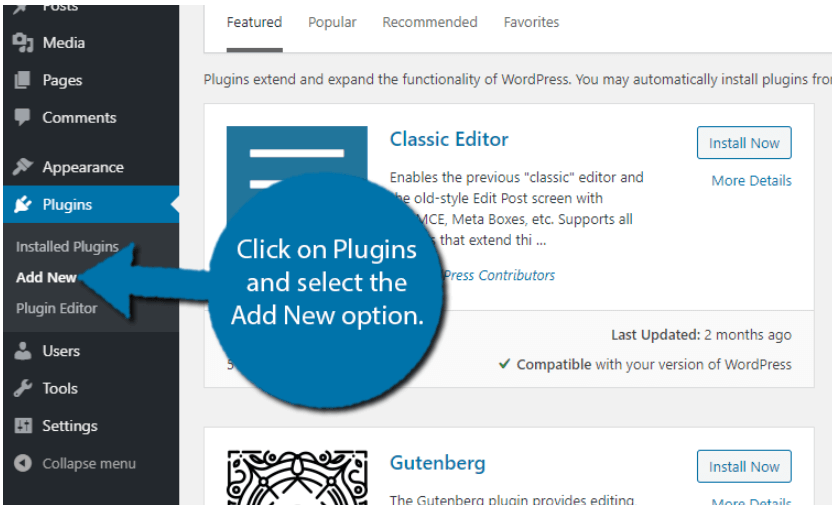
- Search for your chosen ChatGPT plugin
- Click Install Now, then Activate
Once activated, you’ll usually see a new menuIn WordPress, a menu is a collection of links that are displayed as a navigation menu on a website. Menus are … More item in your WordPress dashboardIn WordPress, the Dashboard is a central hub for managing a website’s content and settings. It is the first sc… More related to AI or ChatGPT.
Step 3: Connect OpenAI API to WordPress
This is the most important step—and it’s easier than it sounds.
How to Get Your OpenAI API Key
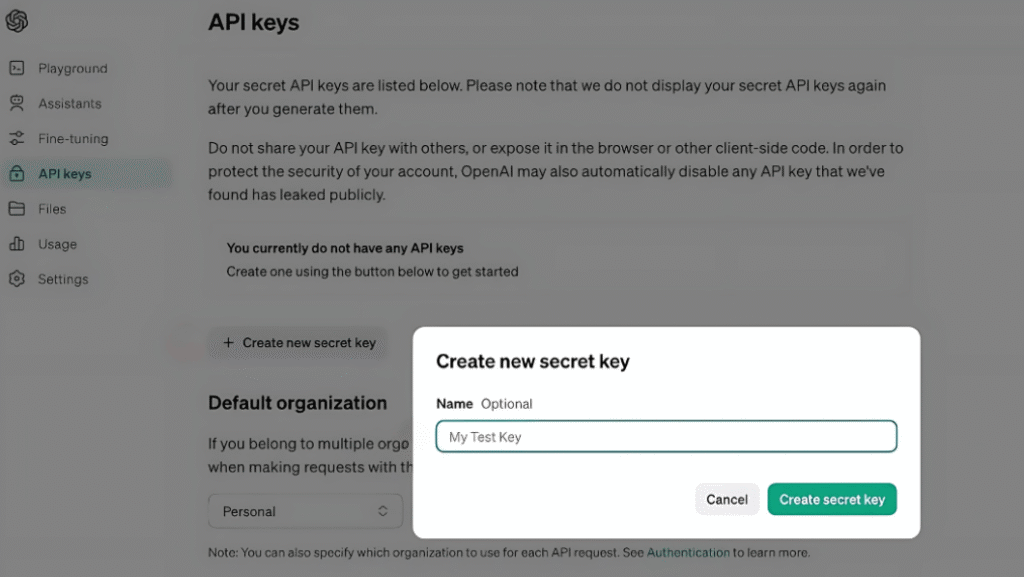
- Log in to your OpenAI account
- Go to the API section
- Generate a new API key
- Copy the key (store it securely)
Add the API Key to WordPress
- Open your ChatGPT plugin settings
- Paste the API key into the API field
- Save settings
- Click “Test Connection” (if available)
If everything is set up correctly, your WordPress site is now connected to ChatGPT.
Step 4: Configure ChatGPT Settings for Beginners
This step allows you to control how ChatGPT behaves on your site.
Key Settings to Adjust:
- Tone of responses (friendly, professional, casual)
- Response length (short answers work best for chatbots)
- Language preferences
- Token or usage limits (to control API costs)
Pro Tip: Start simple. You can always fine-tune the chatbot later based on user feedback.
Step 5: Add ChatGPT Chatbot to Your Website
Now it’s time to make ChatGPT visible to your visitors.
Common Display Options:
- Floating chat widgetA widget is a small block of content that performs a specific function and can be added to certain areas of a … More
- Embedded chatbot on pages
- Sidebar or footer chatbot
- ShortcodesA shortcode in WordPress is a small piece of code that allows users to perform complex functions or display dy… More inside posts
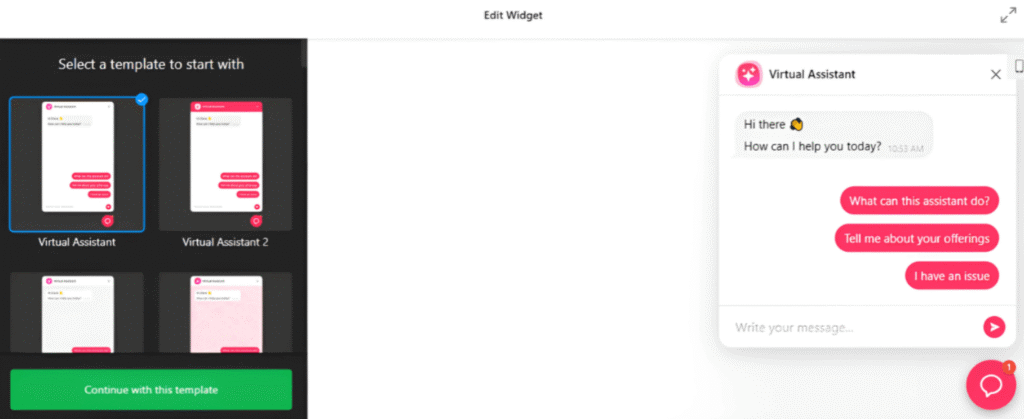
Most plugins provide:
- A shortcodeA shortcode in WordPress is a small piece of code that allows users to perform complex functions or display dy… More (for example: [chatgpt_chatbot])
- A GutenbergGutenberg is the name of a modern WordPress editor that was introduced with the release of WordPress 5.0 in De… More block
- Widget support
Simply place the chatbot where your visitors are most likely to need help—such as your homepage, contact pageIn WordPress, a page is a content type that is used to create non-dynamic pages on a website. Pages are typica… More, or blog posts.
Alternative Method: Manual ChatGPT API Integration in WordPress
If you’re more advanced or working with a developer, you can integrate ChatGPT manually using the OpenAI API.
This involves:
- Custom PHP code
- REST API calls
- Frontend JavaScript handling
While powerful, this method is not recommended for beginners. Plugins already handle security, updates, and performance optimization for you.
Best Practices for ChatGPT WordPress Integration
To get the best results, keep these tips in mind:
✔ Focus on Accuracy
Train your chatbot with clear prompts and predefined instructions to avoid confusing answers.
✔ Protect Site Performance
Limit API calls and avoid placing chatbots on every single page unnecessarily.
✔ Follow Privacy Regulations
- Display a disclaimer
- Avoid collecting sensitive user data
- Stay compliant with GDPR and privacy laws
✔ Monitor Performance
Review chatbot conversations and adjust responses based on real user questions.
Common Issues and Troubleshooting
Even beginner-friendly setups can run into issues. Here are some common problems and quick fixes:
Chatbot Not Showing
- Check shortcode placement
- Ensure the plugin is activated
API Connection Error
- Verify API key
- Check usage limits in OpenAI dashboard
Slow Responses
- Reduce response length
- Check hosting performance
Most plugin developers also offer documentation or support forums if you need extra help.
SEO Advantages of Using ChatGPT on WordPress
You might be wondering—does ChatGPT help with SEO?
The answer is yes, indirectly.
How AI Chat Improves SEO:
- Increases time on site
- Improves user engagement
- Helps visitors find relevant content faster
- Supports conversational search intent
When used correctly, AI integration in WordPress enhances user experience—which search engines love.
Frequently Asked Questions
Is ChatGPT WordPress integration free?
Most plugins are free, but OpenAI API usage may incur costs depending on usage.
Can ChatGPT replace live chat support?
Not entirely, but it can handle most common questions and reduce workload.
Is ChatGPT safe for WordPress websites?
Yes, when used responsibly and with proper security settings.
Will ChatGPT slow down my website?
Not if configured correctly and hosted on reliable servers.
Final Thoughts: Is ChatGPT Worth Adding to WordPress?
Absolutely.
Whether you’re running a blog, business site, or online store, ChatGPT WordPress integration offers a simple yet powerful way to enhance engagement, automate support, and future-proof your website with AI.
The best part? You can set everything up in under an hour—even as a complete beginner.
Start small, test different chatbot placements, and continuously refine responses. AI is evolving fast, and integrating ChatGPT into WordPress now puts you one step ahead of the competition.
If you’re ready to modernize your website, now is the perfect time to add ChatGPT to WordPress.
Your ChatGPT WordPress integration works best on a fast, reliable platform. Click the button below to view our WordPress hosting packages with built-in updates and performance optimization.


![How to Move Blocks in WordPress [A Step-by-Step Guide]](https://codingheros.com/wp-content/webp-express/webp-images/uploads/2025/01/how-to-move-blocks-in-wordpress-a-step-by-step-guide.png.webp)

